

 Integration guide
Connect ActiveCampaign to Qualisend
Qualisend checks the email addresses in your ActiveCampaign account and saves each result on the contact in five custom fields, so you can leave bad addresses out of your sends. This guide covers setup, real-time checks, schedules and fixes for common errors.
- Connects with
- API URL and API key
- Who can connect
- Workspace Owner or Admin
- Writes
- 5 custom fields
- Never changes
- Subscriptions, list membership or tags
- Cost
- 1 credit per address checked
- Per run
- Up to 1,500 contacts
Last updated
Before you start
- A Qualisend account. Create one if you don't have one yet.
- The Owner or Admin role in your Qualisend workspace to connect. Editors can run cleans once it's connected.
- An ActiveCampaign user who can open Settings → Developer and edit contacts and custom fields. Qualisend works with that user's API key.
- Enough credits for the contacts you want to check.
Connect and run a first clean
- 1
Open ActiveCampaign in Qualisend
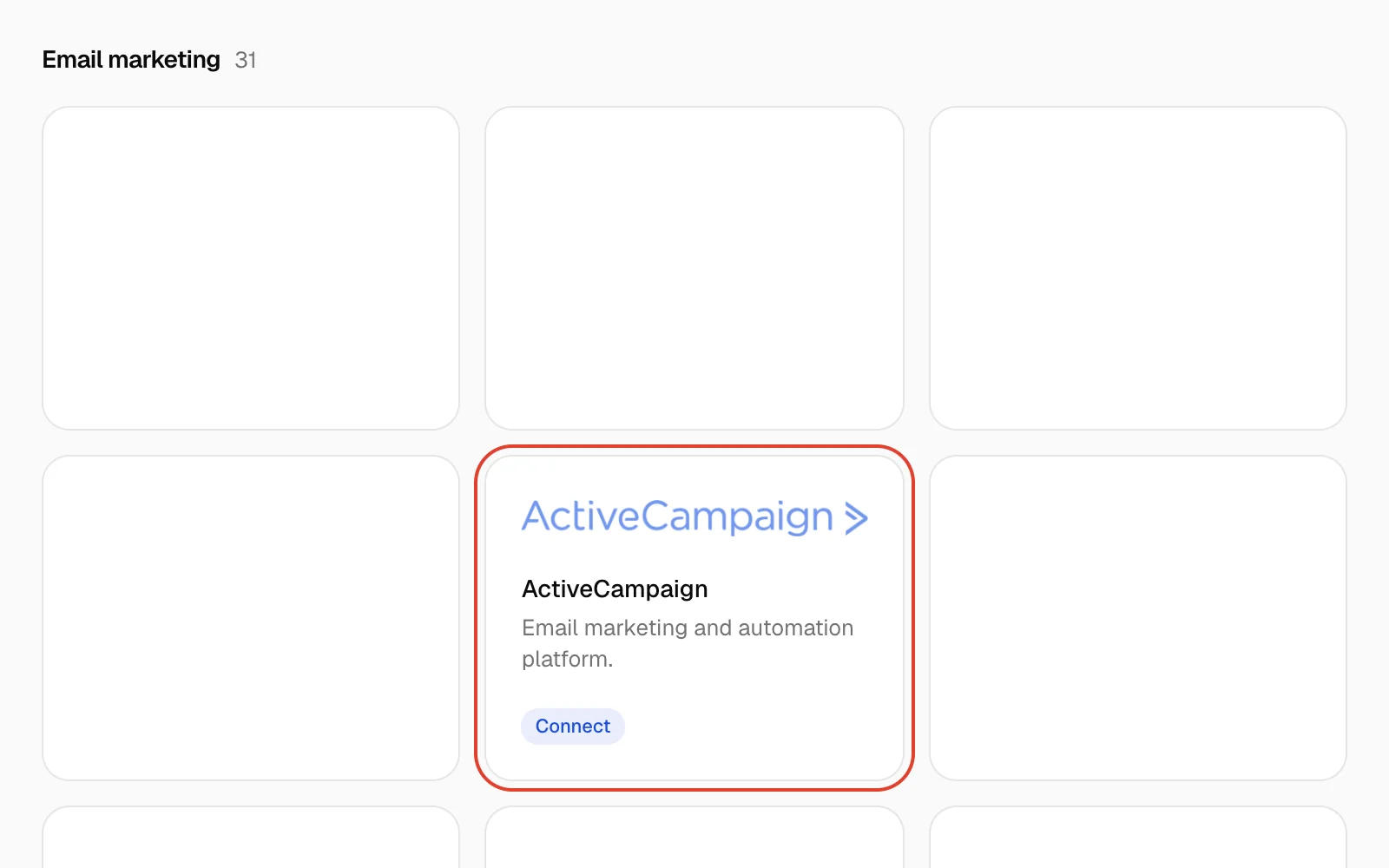
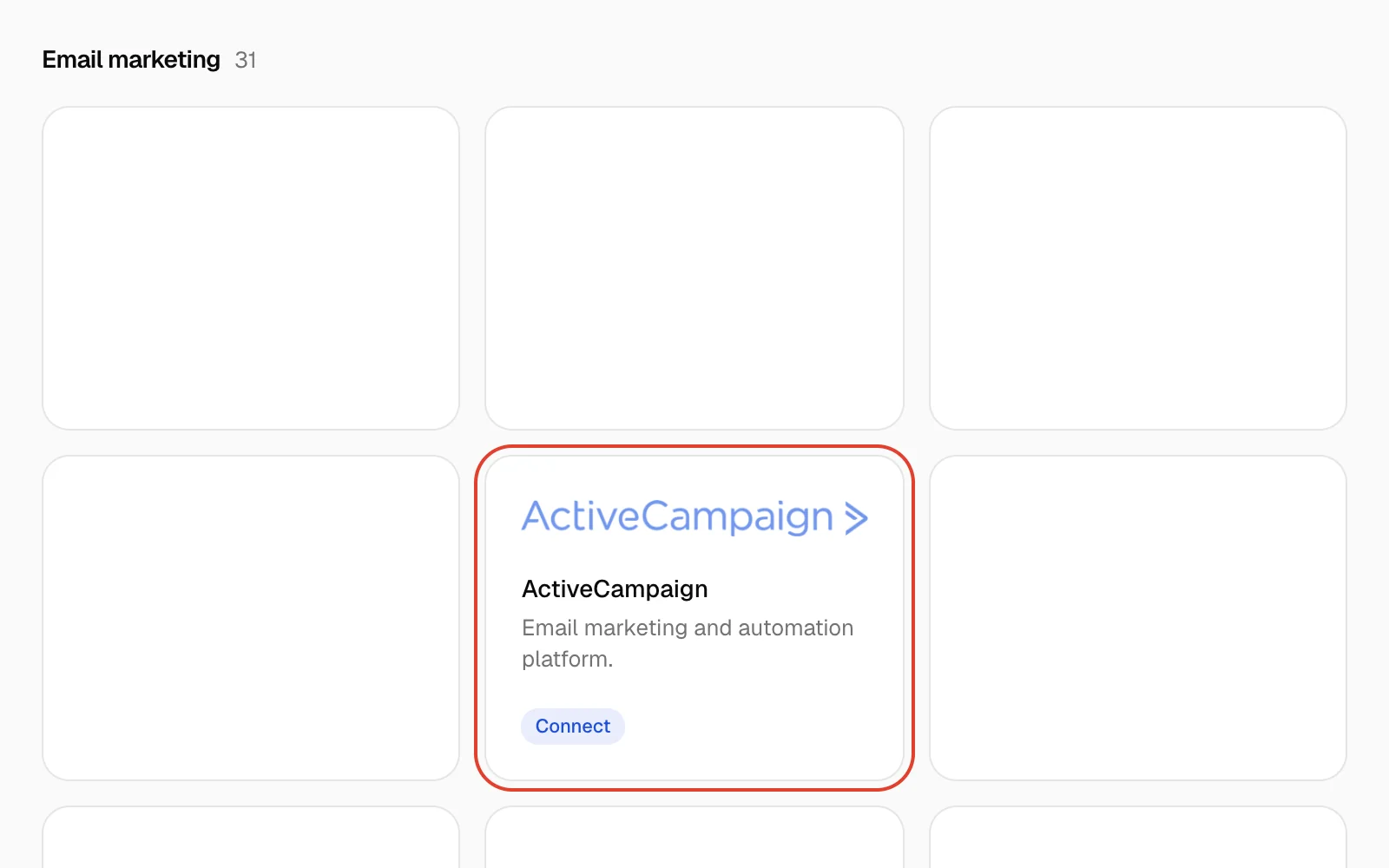
In Qualisend, click Integrations in the sidebar, then the ActiveCampaign tile under Email marketing.
- 2
Copy your API URL and key
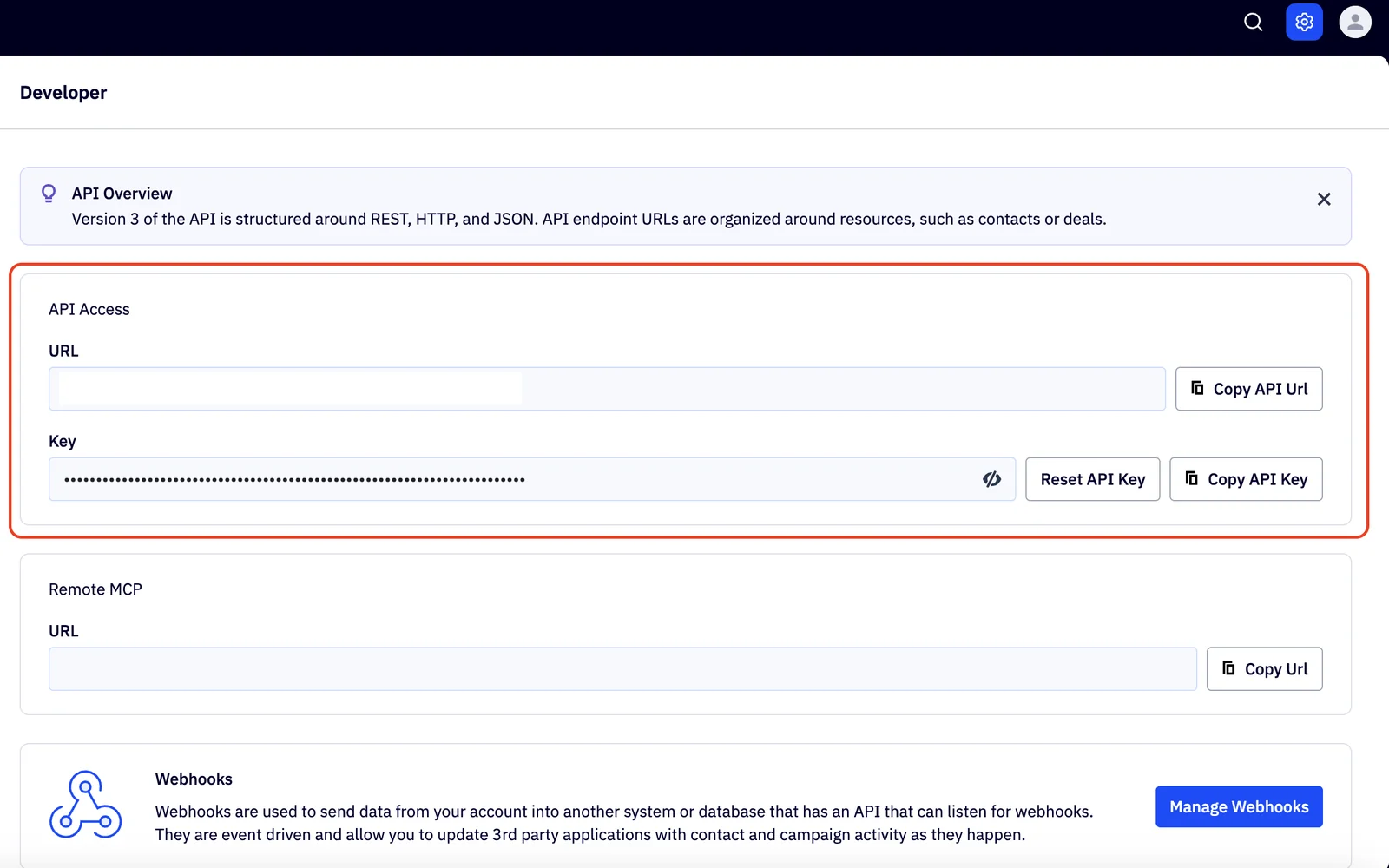
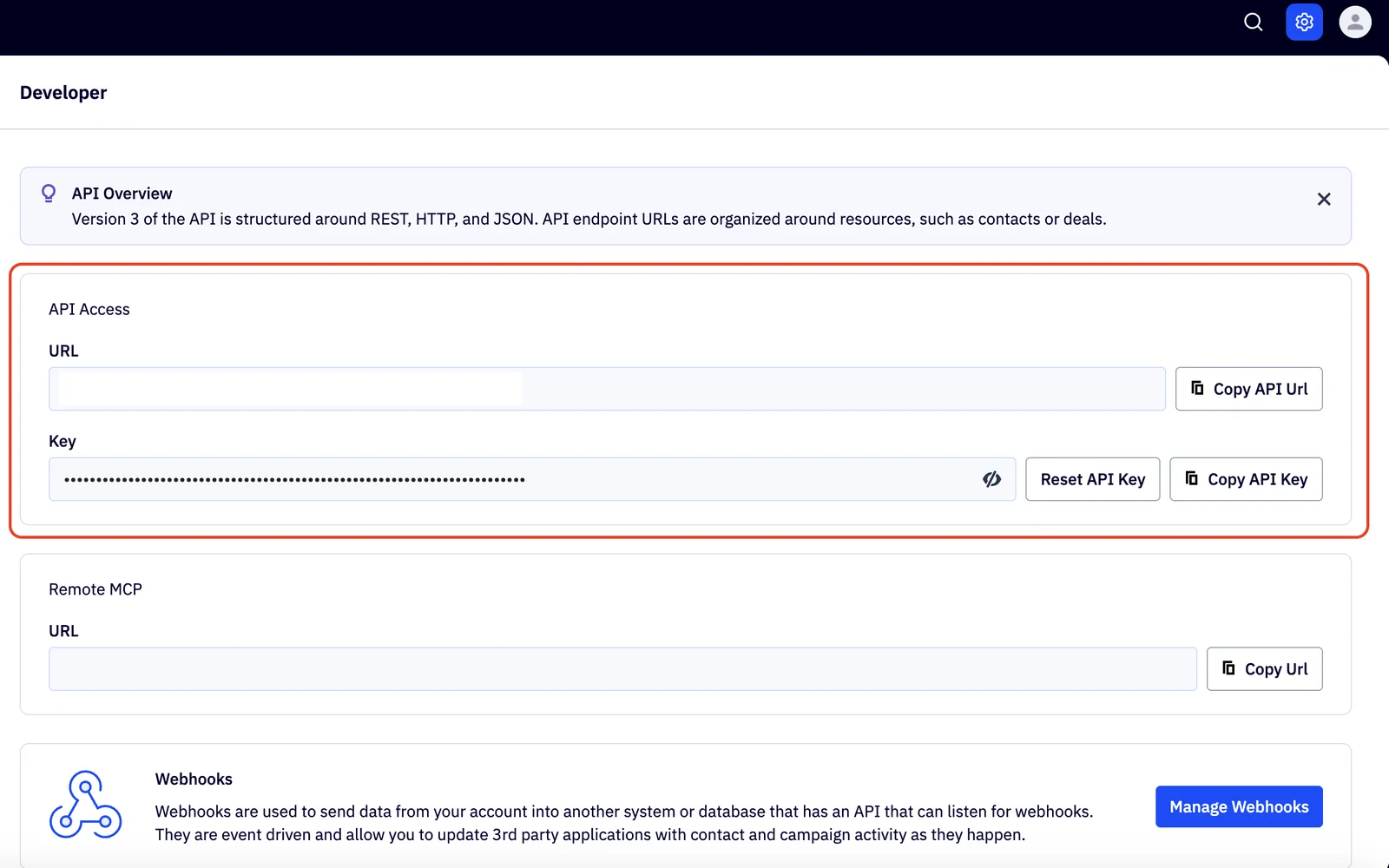
In ActiveCampaign, click Settings (the gear icon), then Developer. Under API Access, use Copy API Url and Copy API Key. Treat the key like a password.
- 3
Paste them and connect
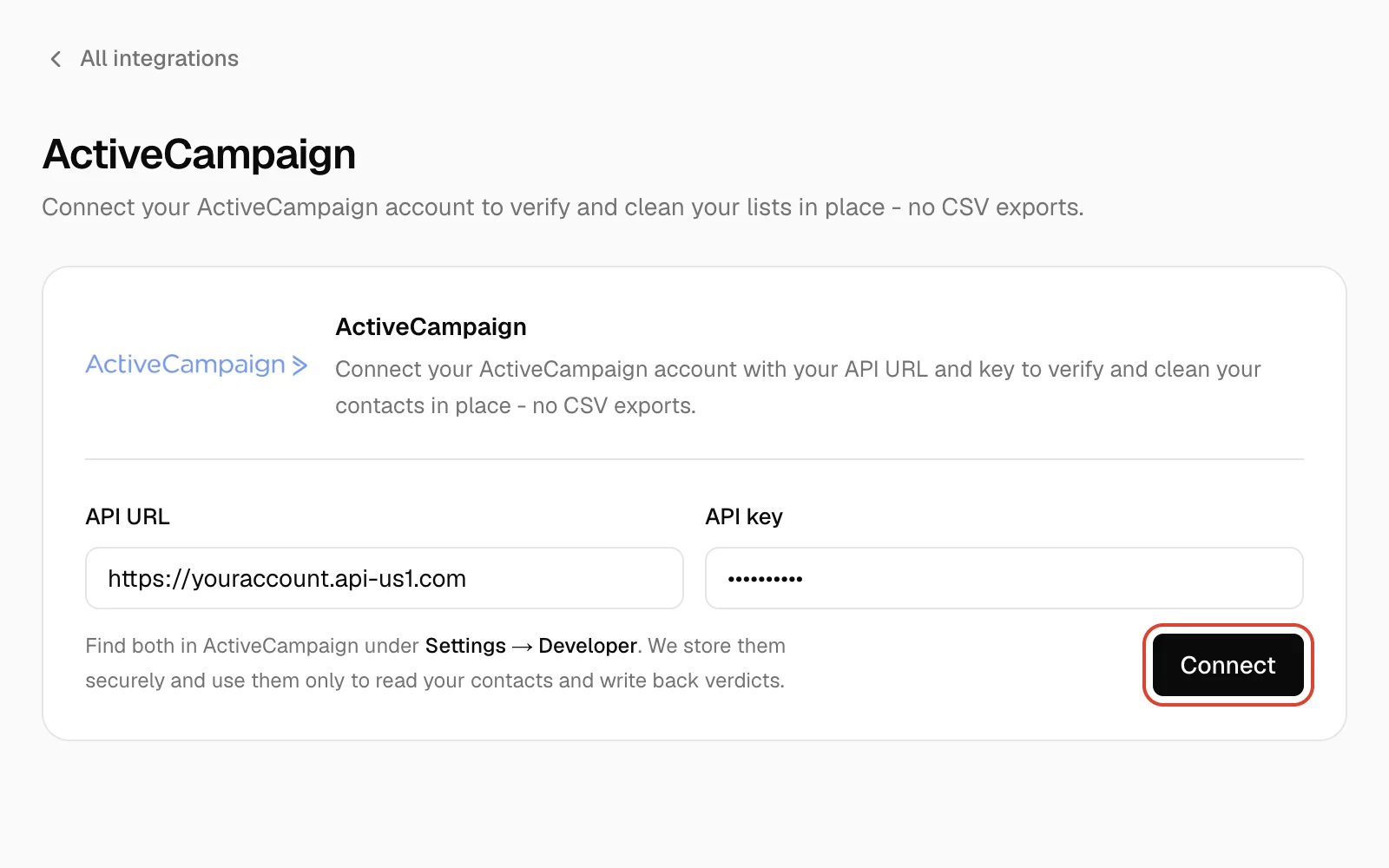
Back in Qualisend, paste them into API URL and API key, then click Connect. The check takes a few seconds. When it passes, the page shows Connected and your account address, such as
youraccount.api-us1.com. The URL works with or without/api/3at the end.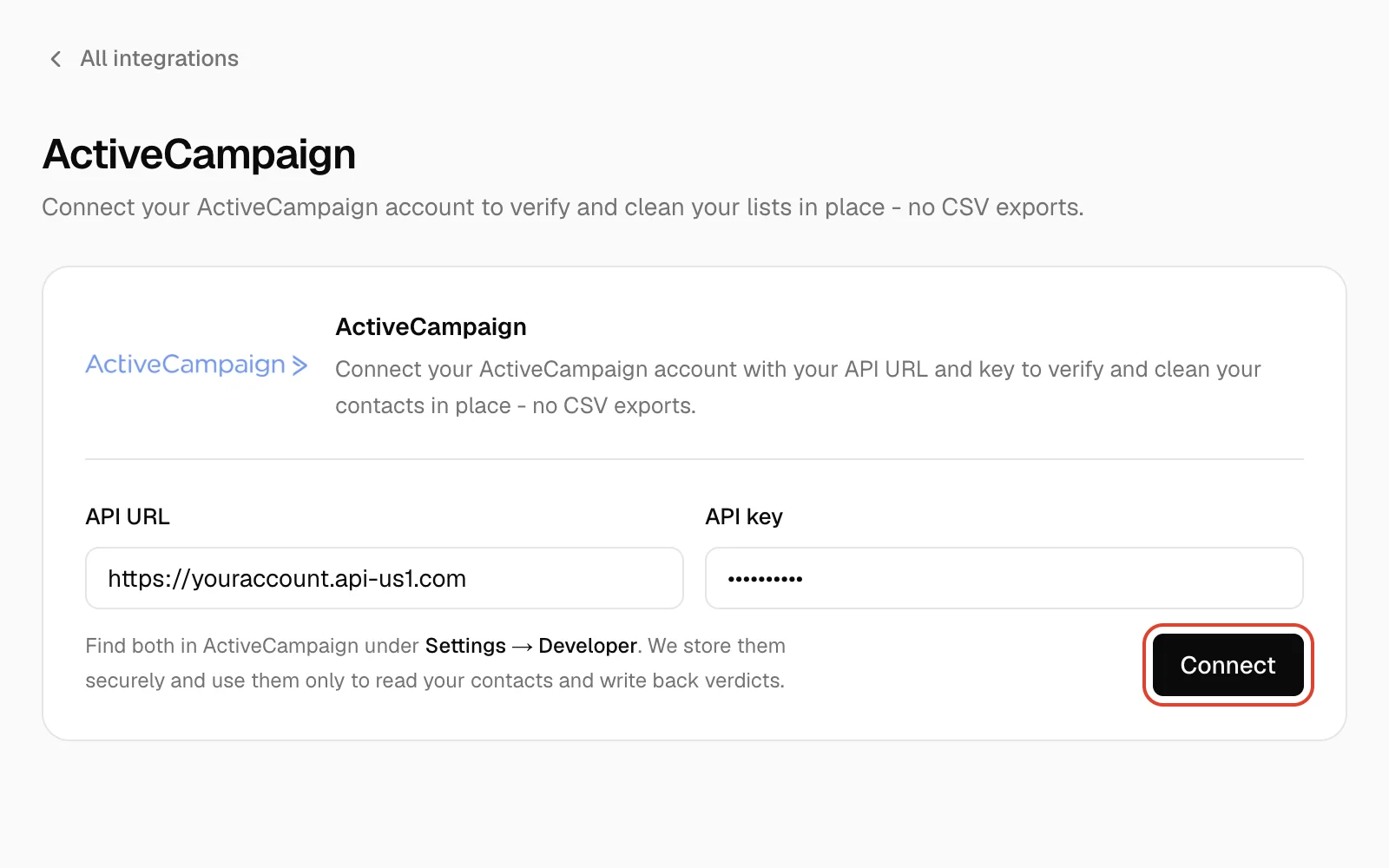
- 4
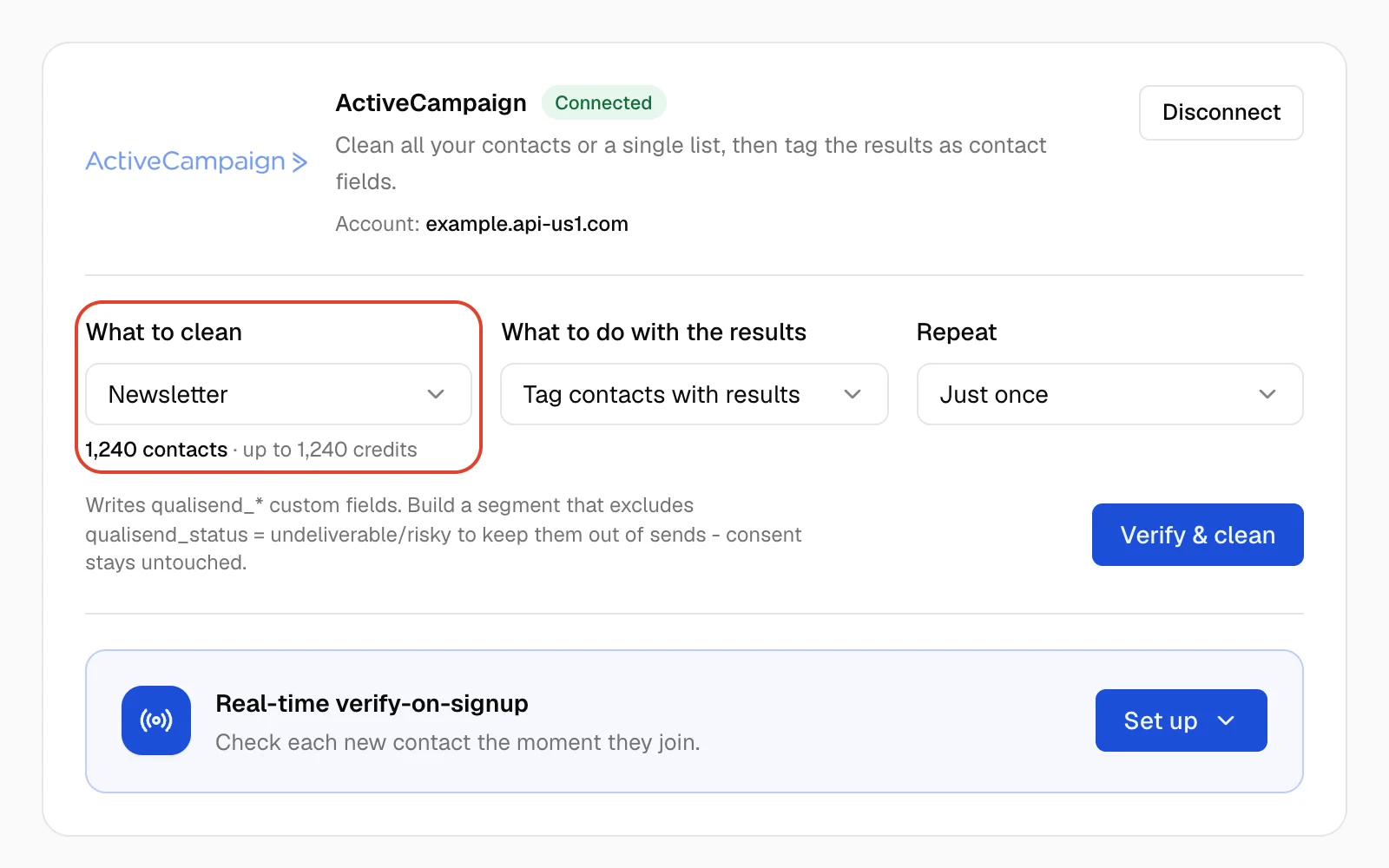
Choose what to clean
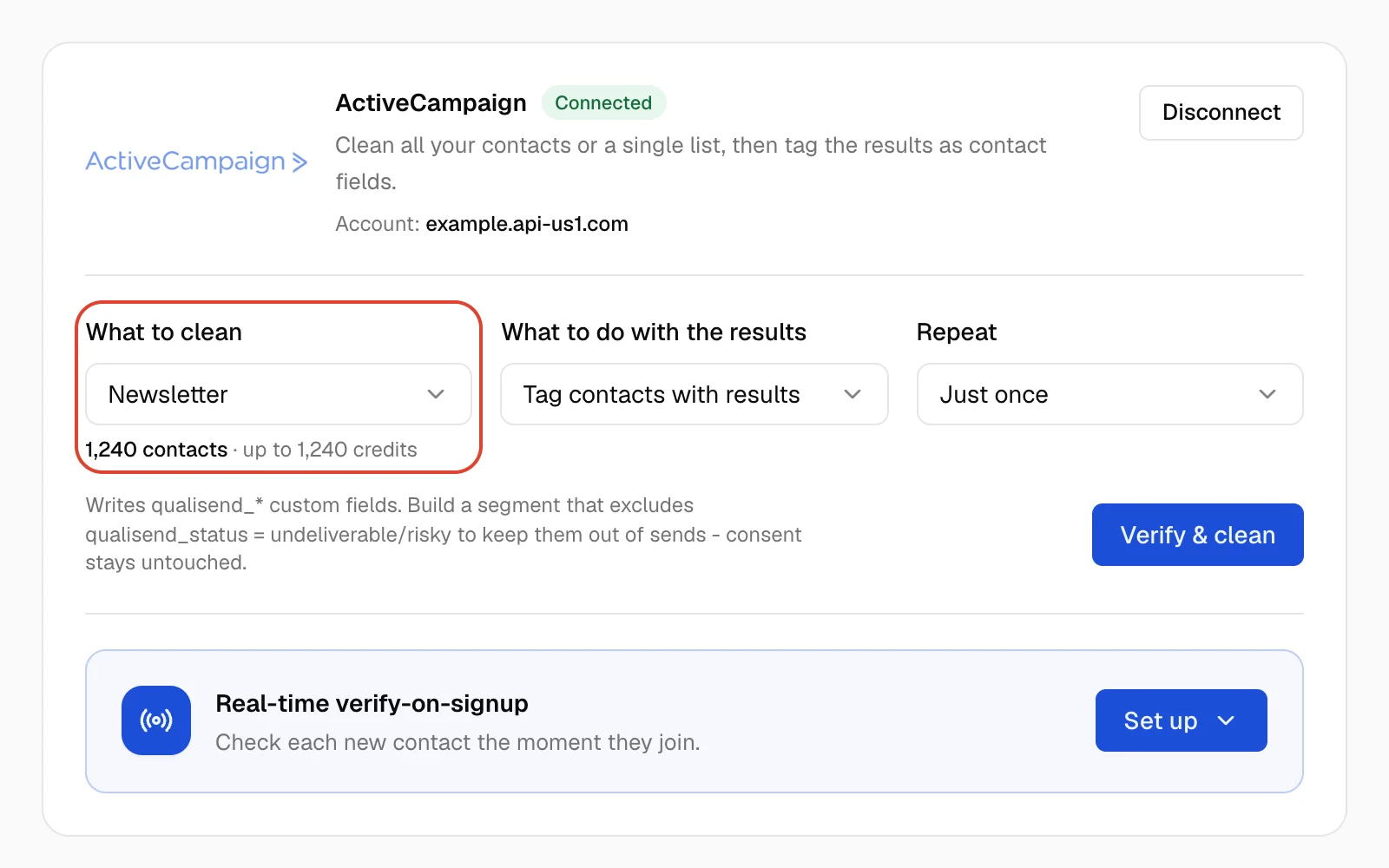
Under What to clean, pick All contacts or one list. Below it, Qualisend shows how many contacts it found and the most credits the run can use. Then, under What to do with the results, choose:
- Tag contacts with results saves each result on the contact in ActiveCampaign. Despite the name, it fills custom fields, not ActiveCampaign tags.
- Verify & export a clean list leaves ActiveCampaign untouched. You download the results instead.
Leave Repeat on Just once unless you want an auto-clean. The same form is also on Bulk cleaning.
- 5
Start the clean
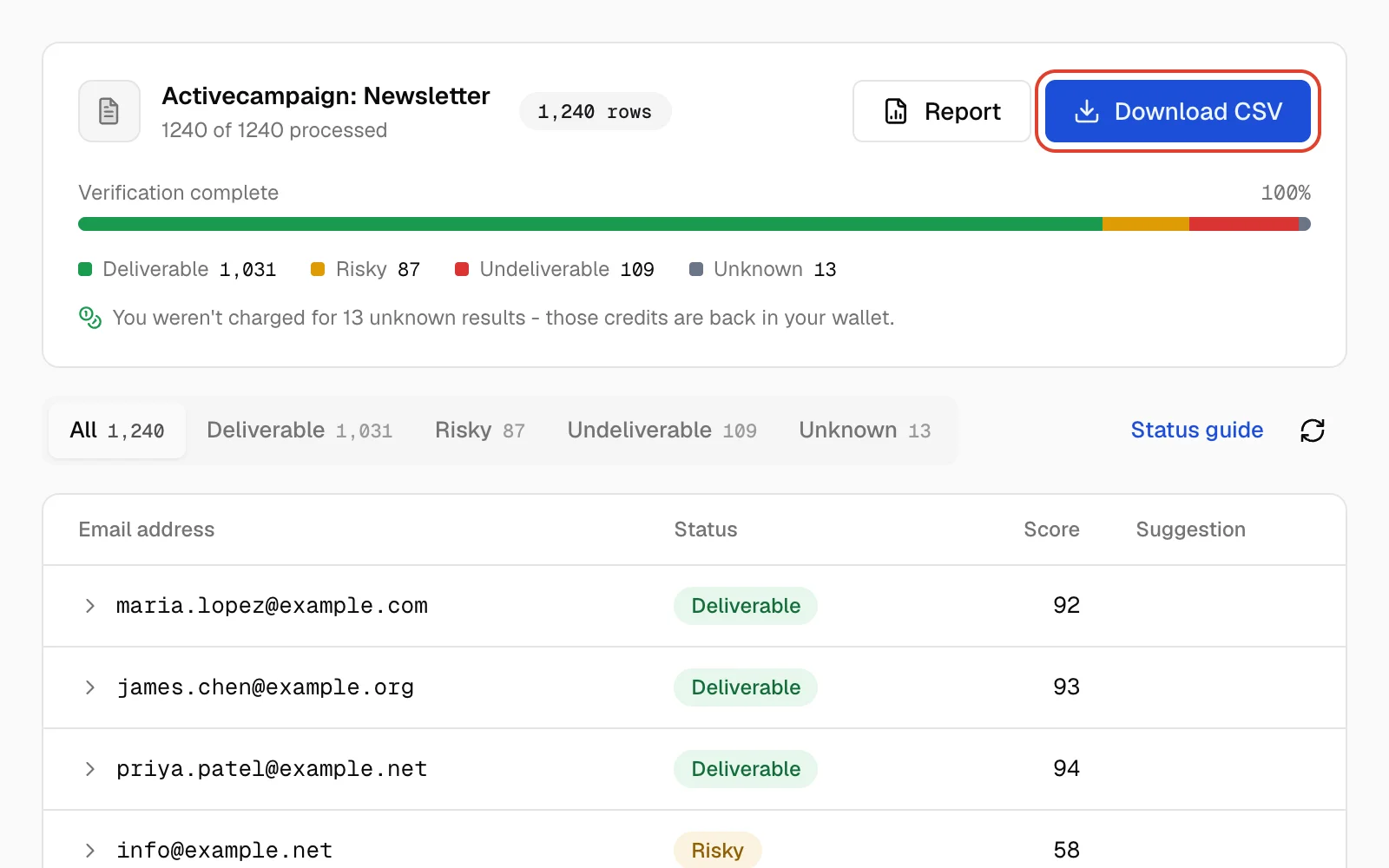
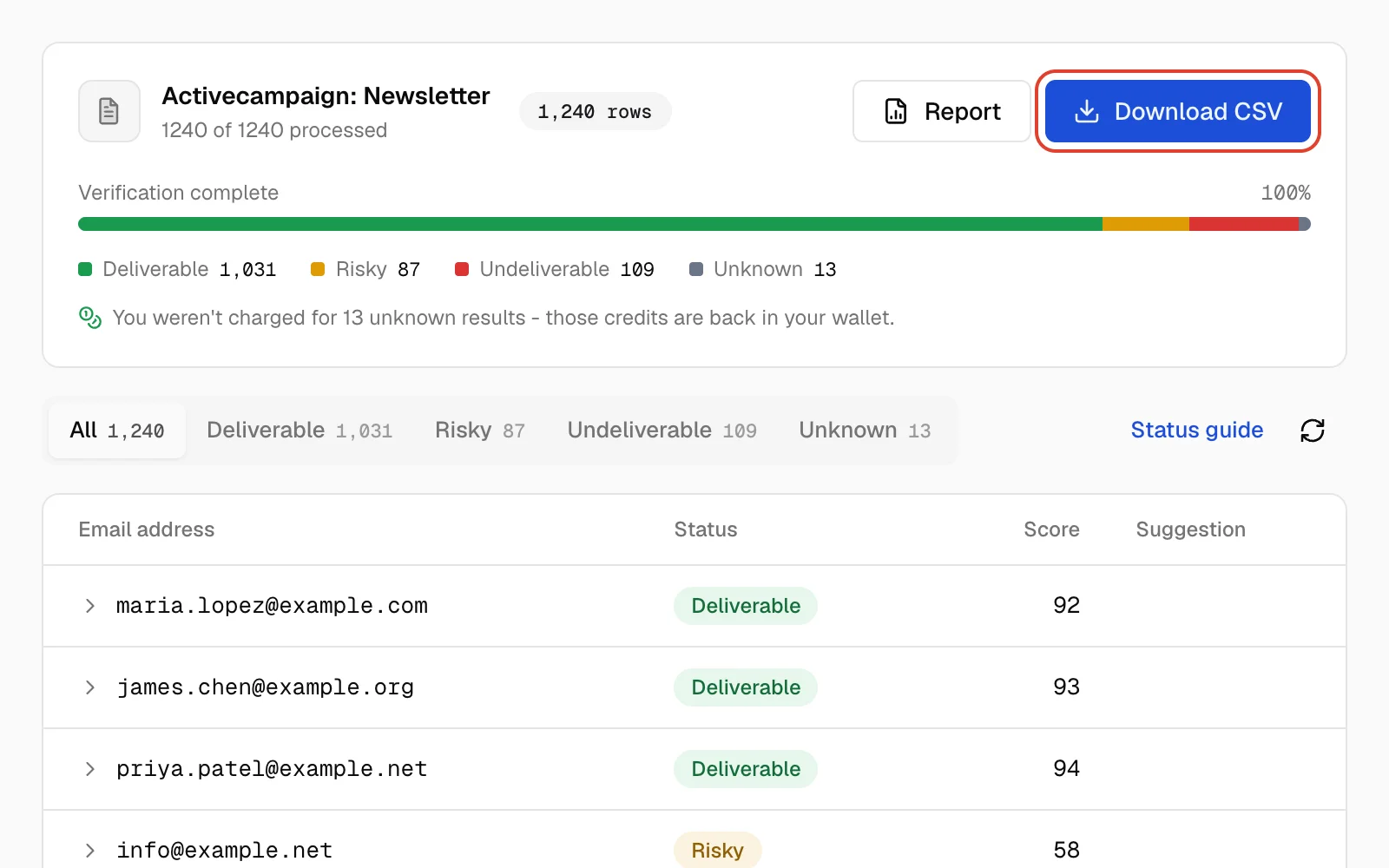
Click Verify & clean. Qualisend opens the clean's results page and counts up as addresses are checked. You can Stop at any time. Once it shows Verification complete, Download CSV saves every result on the All tab, or just the tab you're on.
With Tag contacts with results, the fields are saved after the whole clean finishes. Open a contact in ActiveCampaign to see Qualisend Status and the other Qualisend fields.
Fields written to your contacts
With Tag contacts with results, Qualisend fills five custom fields on each contact it checks. It creates them the first time results are saved and makes them available on all your lists. Each new result replaces the previous one.
| Field | What it holds |
|---|---|
| Qualisend StatusText | deliverable, risky, undeliverable or unknown |
| Qualisend ScoreText | A number from 0 to 100, stored as text |
| Qualisend ReasonText | One code: accepted_email, low_deliverability, low_quality, invalid_email, invalid_domain, rejected_email, timeout, unavailable_smtp or unknown |
| Qualisend FlagsText | Any of free_mail, disposable, role, catch_all, full_mailbox, disabled, separated by commas. Empty when none apply. |
| Qualisend CheckedDate | The day of the check |
For what each status means, see the status guide.
Use the fields in ActiveCampaign
To keep bad addresses out of campaigns, build a segment that leaves out contacts whose Qualisend Status is undeliverable. Add risky if you want to hold those back too; What to do with each result suggests an action for each status and the main flags. Filter on Status rather than Score: Score is stored as text, so greater-than and less-than comparisons are unreliable.
Check new contacts in real time
ActiveCampaign can send each new contact to Qualisend through a webhook. Qualisend checks the address and saves the same five fields. You add the webhook in ActiveCampaign yourself; Qualisend doesn't create it for you.
For forms you host yourself, see the verification API.
- 1
Copy your webhook URL
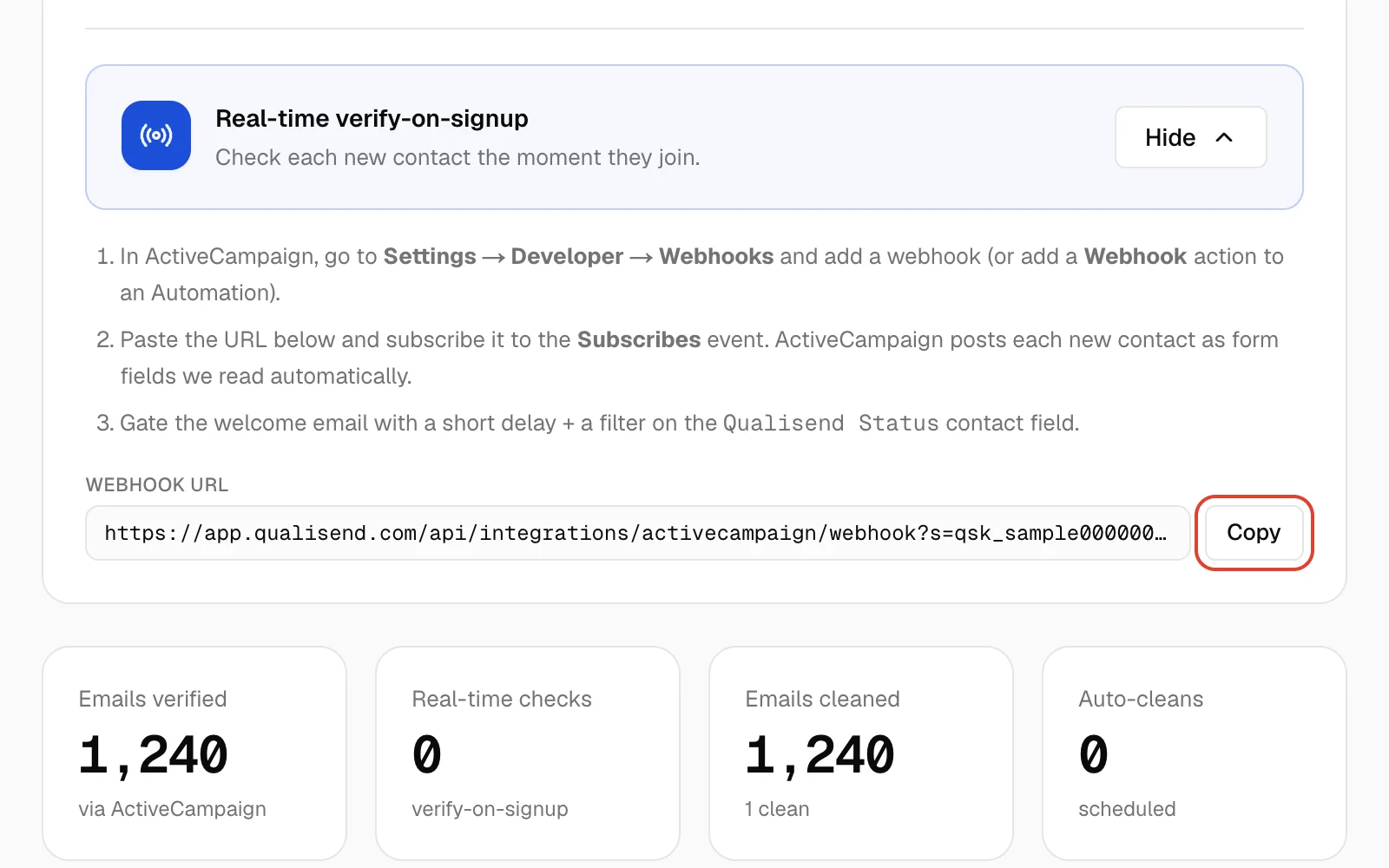
On the ActiveCampaign page in Qualisend, find Real-time verify-on-signup and click Set up (Manage once checks are arriving), then Copy next to Webhook URL. The URL contains a secret key for your Qualisend workspace, so keep it private. This step needs the Owner or Admin role.
- 2
Add the webhook in ActiveCampaign
In ActiveCampaign, go to Settings → Developer, click Manage Webhooks, then Add. If it asks which kind of webhook, pick the standard one for contacts. Give the webhook a name, such as Qualisend, and paste the URL.
- 3
Choose the event and sources
Under Type, select Subscribes only. Don't add Contact updated: Qualisend's own field updates would trigger it. If ActiveCampaign asks for a list, pick the list your signup form adds people to.
Then choose which sources should trigger it: contacts (for example, form signups), admin users, the API or system processes. Every contact sent to the webhook is checked and uses one credit, so pick only the sources you want checked. Save the webhook.
Prefer automations? Add a Webhook action with the same URL to an automation instead.
- 4
Hold the welcome email for the result
In the automation that sends your welcome email, add a Wait of a few minutes before it, then an If/Else on Qualisend Status. Send unless the status is
undeliverable, so contacts that haven't been checked yet still get the email.The Qualisend fields only appear in ActiveCampaign after results are first saved. If you can't pick Qualisend Status yet, run a clean with Tag contacts with results first.
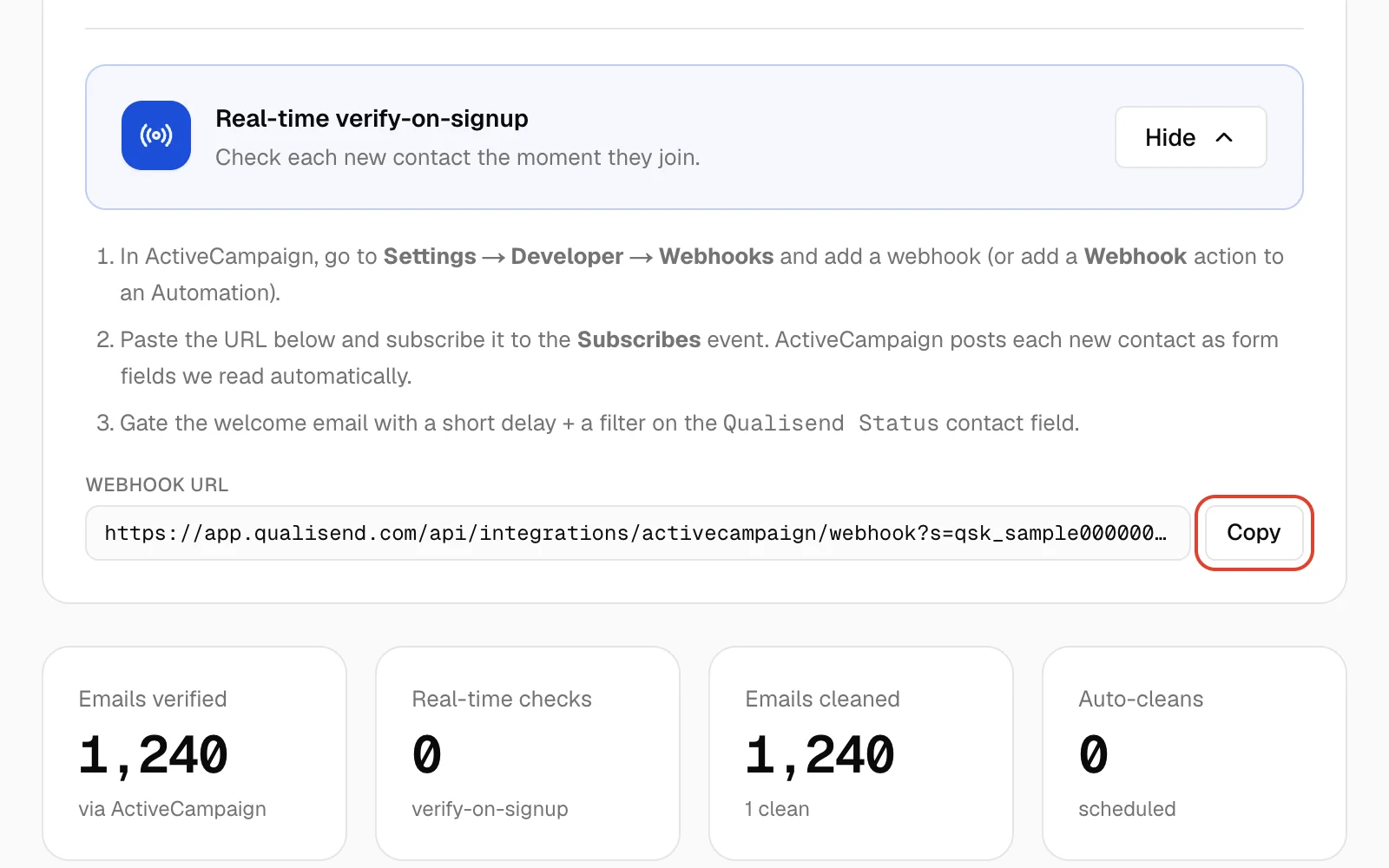
- Once checks arrive, the card shows Active and the time of the last check.
- Instant results, such as undeliverable or disposable addresses, usually reach ActiveCampaign within a minute. Others need a live mailbox check first. A check that hasn't finished after 15 minutes is saved as
unknown. - If ActiveCampaign sends the same address twice within two minutes, it's checked once. ActiveCampaign can deliver a webhook more than once.
- ActiveCampaign sends the whole contact to the webhook; Qualisend uses only the email address.
- Each check uses one credit, and
unknownresults are refunded. If you run out, the card shows Paused - out of credits and new contacts aren't checked until you top up. Contacts that arrived in the meantime aren't checked later, so clean their list.
Auto-clean on a schedule
To clean a list or all contacts regularly, set Repeat to Auto-clean every 7 days, Auto-clean every 14 days or Auto-clean every 30 days before you click Verify & clean. That clean runs now, and the next one runs after the interval you picked. On a bigger source, every auto-clean re-checks the same first 1,500 contacts.
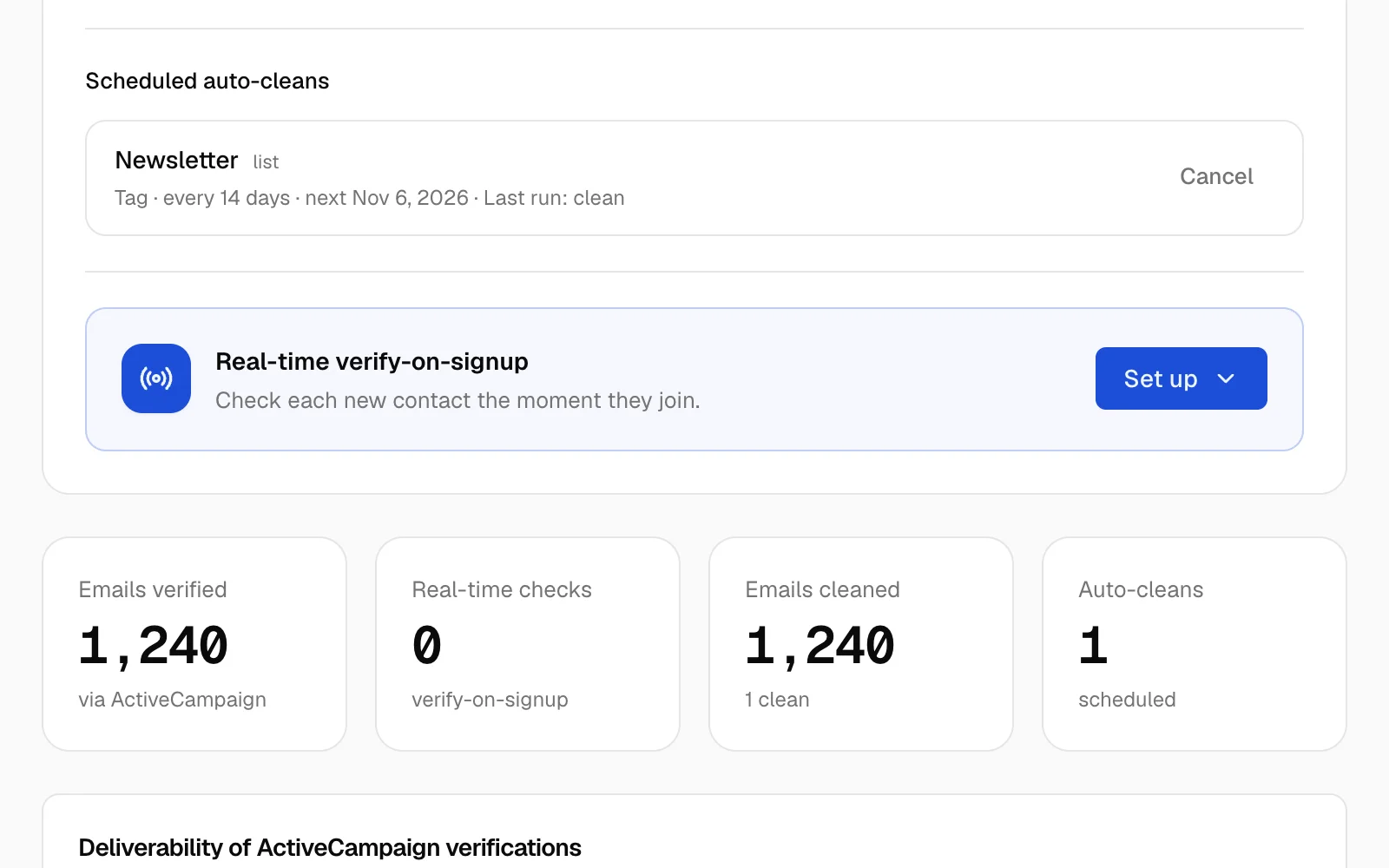
Schedules appear under Scheduled auto-cleans on the ActiveCampaign page, with the next date and how the last run went:
- Last run: clean: it ran.
- Last run: no contacts: the list was empty.
- Last run: error: it couldn't run, for example because there weren't enough credits.
- Skipped - reconnect ActiveCampaign: ActiveCampaign was disconnected when the clean was due.
Click Cancel to stop a schedule. Auto-cleans use credits like any other clean.
Credits and limits
- A clean uses one credit per unique address. Duplicates in the same run count once.
- Credits for the whole run are reserved when it starts. If your balance can't cover it, the clean doesn't start.
unknownresults are refunded, and stopping a clean returns the credits it hasn't used. Verify & export a clean list uses credits the same way.- Each run, auto-cleans included, checks the first 1,500 contacts of the list you pick (or of All contacts), and it's the same contacts every time. The count under What to clean tells you when a source is bigger. To cover more, split them into lists of 1,500 or fewer and clean each one, or clean it by CSV.
- The list picker shows your first 100 lists.
- See pricing for credits and plans.
Disconnect
On the ActiveCampaign page in Qualisend, click Disconnect. It takes effect right away, with no confirmation step. Only an Owner or Admin can disconnect.
If you're leaving for good, cancel your auto-cleans first. They're hidden while ActiveCampaign is disconnected.
After you disconnect:
- Qualisend deletes your API key and API URL.
- The Qualisend fields and their values stay in ActiveCampaign.
- Your webhook stays in ActiveCampaign, but Qualisend rejects what it sends. Delete it from Settings → Developer, under Manage Webhooks.
- Past results stay in your Qualisend workspace.
If you connect again later, your existing webhook starts working again.
If you click Reset API Key in ActiveCampaign, disconnect and connect again with the new key. Your webhook keeps working.
Troubleshooting
“ActiveCampaign rejected that API URL or key. Check them and try again.”
“requires admin role”
“requires editor role”
“insufficient credits”
“Couldn't load ActiveCampaign: could not load activecampaign lists”
“0 contacts - nothing to clean here”
My list isn't in the picker
None of my contacts have the Qualisend fields
Some contacts don't have the Qualisend fields
I can't pick Qualisend Status in an automation
“Paused - out of credits”
The webhook isn't doing anything
?s=, and that ActiveCampaign is still connected in Qualisend. Requests with an incomplete URL are rejected. If your balance hit zero, checks are skipped, not queued. If the card shows Active but new contacts don't get the fields, the API key may have been reset. Disconnect and connect again with the current key.Related
Get help
Still stuck? Use the contact form or email hello@qualisend.com. Include the message you see and roughly when it happened.