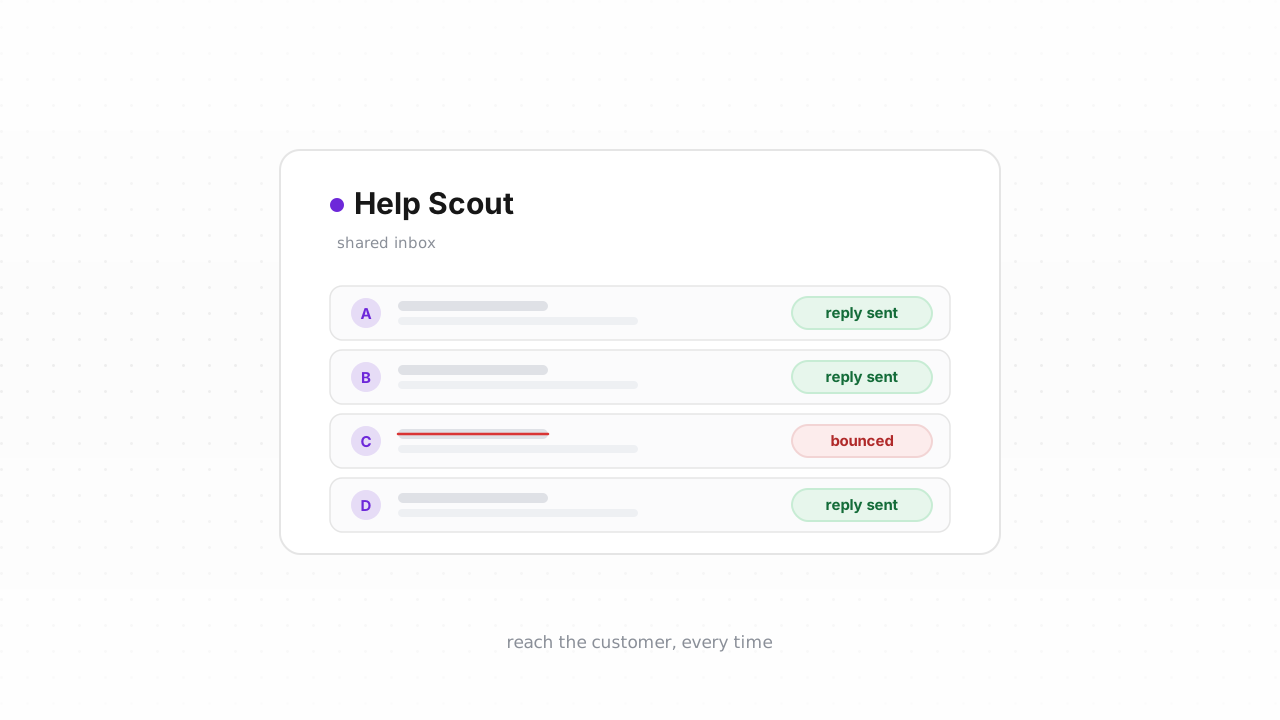
Support email is transactional email, and it lives or dies by deliverability. When an agent replies to a ticket in Help Scout, that reply becomes an email to your customer. If the address is dead, the reply bounces, the customer never sees it, and the ticket quietly reopens or times out against your SLA. Verifying the addresses in your Help Scout account catches those dead ends before they cost you a conversation. This guide walks through what Help Scout stores about contacts, how to export and verify your customer list, how to tag the undeliverable ones, and how to check new contacts in real time.
Why support email deliverability matters#
A marketing list can tolerate a few bad addresses. A support inbox cannot, because every message is a promise to a specific person who is waiting for an answer.
When a support reply bounces, the failure is usually invisible to the agent. Help Scout hands the message to your sending infrastructure, gets a queued response, and marks the conversation as answered. The bounce arrives asynchronously — sometimes minutes later, sometimes not at all if the receiving server silently drops it. From the customer's side, nothing happened. They asked a question and got silence. That silence turns into a follow-up ticket, a chargeback dispute, or a public review, and it counts against your first-response and resolution SLAs even though your team did the work.
There is a second, slower cost. A shared support inbox and your marketing sender often authenticate under the same domain. Every hard bounce and spam complaint from support mail feeds the same domain reputation that governs whether your other mail reaches the inbox at all. Mailbox providers now treat that reputation strictly — see our summary of the Google & Yahoo sender rules and the broader email deliverability guide for the mechanics. Cleaning the addresses you reply to is one lever; authenticating the domain you reply from is the other. If you haven't set up SPF, DKIM, and DMARC for your Help Scout sending, do that alongside verification using our Authenticate Help Scout (SPF/DKIM/DMARC) walkthrough.
What Help Scout tracks about contacts#
Help Scout builds a Customer profile automatically the first time someone emails your inbox or you create one by hand. Each profile can hold one or more email addresses, a name, company, and any custom properties you've defined, plus the full conversation history tied to that person.
Two details matter for verification. First, the email address on a profile is whatever the customer typed when they first wrote in — Help Scout does not validate it beyond basic format. Typos like gmial.com, role addresses like billing@, and long-abandoned mailboxes all sit in your customer base looking identical to good addresses. Second, Help Scout has no built-in "verified" or "deliverability" field. It tracks whether a conversation was delivered and surfaces bounce activity on individual threads, but it does not keep a durable, list-wide flag you can filter on. That is exactly the gap tags fill: you can apply a tag such as undeliverable to a customer's conversations and then filter or search on it later. If you're new to the underlying concepts, what is email verification covers the terminology used below.
Help Scout behavior above last verified against Help Scout's documentation, August 2026.
Step-by-step: export contacts, verify, tag the undeliverable#
The manual loop below works on any Help Scout plan and doesn't touch your live data until the final tagging step.
-
Export your customers. In Help Scout, open Manage → Customers, apply any filter you want (for example, customers created in the last year), and use the export option to generate a CSV. Help Scout emails you a link to the file. Open it and confirm there's a column holding the email address.
-
Upload the CSV to Qualisend. Create a bulk job and map the email column. A single job accepts up to 1,000,000 addresses, and duplicates are charged once, so you don't pay twice for a customer who wrote in from the same address on three tickets. If you just want to try it, the free plan includes 100 one-time credits that never expire.
-
Read the verdicts. Every address comes back as deliverable, risky, undeliverable, or unknown, each with a reason code and sub-flags for catch-all, disposable, role, and full-mailbox conditions, plus the MX provider, SMTP probe evidence, and a 0–100 confidence score. Keep the deliverable rows. Treat undeliverable as safe to stop replying to. For risky, use the sub-flags to decide — a catch-all address accepts everything at the SMTP layer so it can't be confirmed, while a full mailbox may clear up later.
-
Tag the undeliverable in Help Scout. Filter the results CSV to the undeliverable (and, if you choose, risky) addresses. Back in Help Scout, search or filter your customers to those addresses and apply a tag like
undeliverable-email. Tags are the durable, filterable flag Help Scout otherwise lacks, so your agents can see at a glance that a reply is unlikely to land and can reach out through another channel instead.
This loop is repeatable but manual, and it only reflects the moment you exported. For a live view, connect the integration below.
Verify new contacts in real time#
Qualisend's native Help Scout integration is live. Connecting the Help Scout integration lets you clean your existing customer list in place — Qualisend verifies each address and writes the results back to Help Scout — and then checks new contacts in real time as they arrive, so a bad address gets flagged the first time someone writes in rather than the next time you remember to run an export. That's the fastest path, and for most teams it replaces the CSV loop entirely.
If you're on a plan that can't add the connector, or you want verification wired into a custom workflow, the CSV loop above still works, and two other paths cover the gaps:
- API. Call the Qualisend Verification API from your own middleware to check an address the moment a Customer profile is created. It uses scoped keys, enforces rate limits, and supports webhooks so you can react to results asynchronously. See the developer docs for the request shape and verdict schema.
- No-code. Trigger verification from a Help Scout "new conversation" or "new customer" event using Zapier, Make, or n8n, then branch on the verdict to tag the customer or notify an agent — no code required.
Whichever route you pick, pair verification with authentication. Clean addresses get your replies accepted; a properly signed domain keeps them out of spam. Track the payoff with our email bounce-rate benchmarks so you know what "good" looks like for a support inbox.
Frequently asked questions#
Does Qualisend have a native Help Scout integration?#
Yes. The native Help Scout integration is live. You can connect it from the Help Scout integration page to clean your existing customer list in place — Qualisend verifies each address and writes the results back to Help Scout — and it checks new contacts in real time as they arrive. It's the fastest path; the CSV export-and-tag loop remains available as an alternative that works on any plan.
Can I verify addresses before they enter Help Scout?#
Yes. Use the Qualisend Verification API in your signup form, contact form, or middleware to check an address before a Help Scout Customer profile is ever created, or wire the same check through Zapier, Make, or n8n. Verifying at the point of entry keeps bad addresses out of your customer base instead of cleaning them up afterward.
How does Qualisend classify a support address?#
Every address returns one of four verdicts — deliverable, risky, undeliverable, or unknown — each with a reason code and sub-flags for catch-all, disposable, role, and full-mailbox conditions. Results also include the MX provider, SMTP probe evidence, and a 0–100 confidence score so you can decide how to treat borderline cases.
What should I do with risky and catch-all results?#
Risky means Qualisend couldn't fully confirm the mailbox. Check the sub-flags: a catch-all domain accepts all mail at the SMTP layer, so acceptance isn't proof the specific mailbox exists, while a full mailbox may recover later. For support, it's usually safe to keep replying to risky addresses but avoid using them for bulk notifications until they clear.
Do I have to pay for duplicate addresses?#
No. A single Qualisend bulk job accepts up to 1,000,000 addresses and charges duplicates once, so a customer who appears multiple times in your Help Scout export only costs one credit. The free plan includes 100 one-time credits that never expire if you want to test first.