
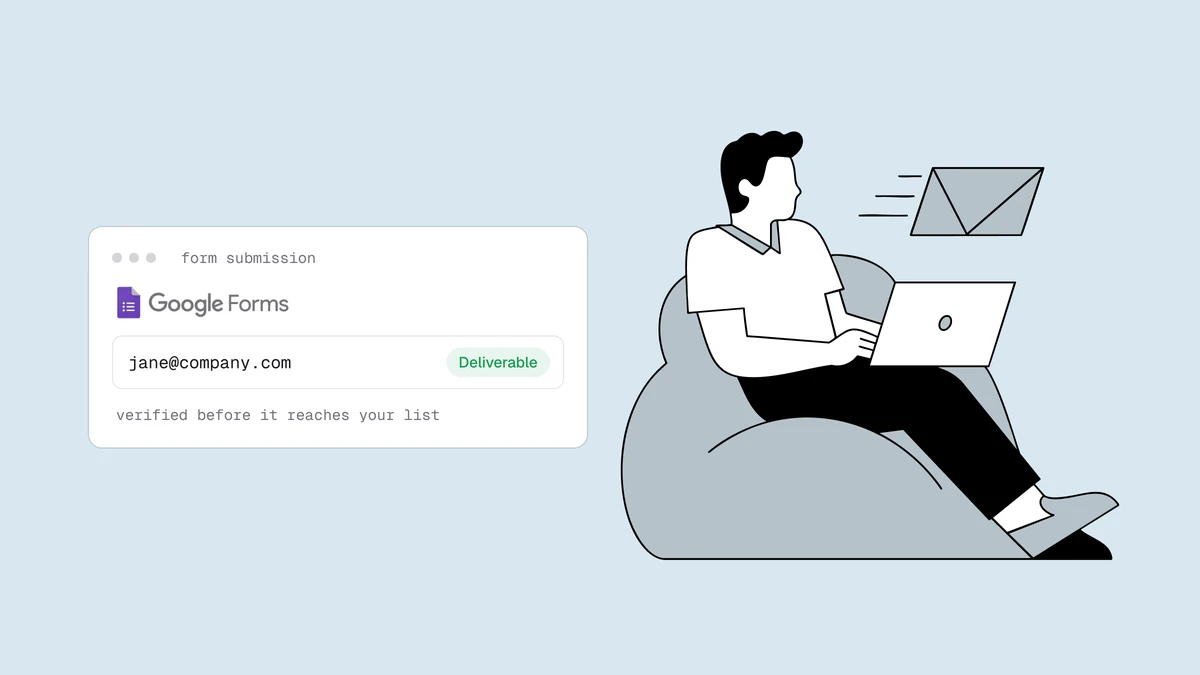
Google Forms will happily accept jane@gmial.com, a burner from a disposable
domain, or an address for a company that folded two years ago. The built-in
"valid email" setting only checks that the text looks like an address — it never
asks whether a real mailbox is behind it. To actually verify emails from Google
Forms you need a second step: a real check against the mail system, either the
moment a response lands or in a batch afterwards. This guide shows both, using
Google Apps Script as the glue.
The short answer#
Two paths, depending on whether you need the verdict live or can clean in batches:
- Real time — add an
onFormSubmittrigger in Apps Script that reads the submitted address, calls the Qualisend API withUrlFetchApp, and writes the verdict back into the linked Google Sheet. Every new response gets scored as it arrives. - Bulk — the responses already live in a Sheet, so download them as CSV and run one bulk verification. Best for a form that has been collecting for a while, or when you don't want to touch code.
Both lean on the same verdict — deliverable, risky, undeliverable, or
unknown, plus sub-flags for disposable, role, and free addresses. What changes
is the timing.
Path 1: verify emails from Google Forms in real time with Apps Script#
Google Forms can't call an external API by itself, but the Sheet its responses flow into can — through Apps Script. The plan is small: fire on each submission, grab the email, ask Qualisend about it, and stamp the answer next to the row.
Set up the script. Open the Google Sheet that collects your responses (in the Form editor,
Responses → Link to Sheets if you haven't already). From the Sheet, go to
Extensions → Apps Script. Before anything else, store your key so it never
sits in the code: in the script editor, open Project Settings → Script
Properties and add QUALISEND_API_KEY with your value. The script reads it at
runtime with PropertiesService.
Then paste a handler like this. It calls POST https://app.qualisend.com/api/v1/verify,
and the API reference documents the full request and response:
// Bound to the responses spreadsheet.
// Runs on each new Form submission (see trigger setup below).

const QUALISEND_URL = 'https://app.qualisend.com/api/v1/verify';
const EMAIL_QUESTION = 'Email address'; // your exact question title
const STATUS_COL = 8;                    // first of 3 empty columns: verdict, score, pending job id

function onFormSubmit(e) {
  const email = (e.namedValues[EMAIL_QUESTION] || [])[0];
  if (!email) return;

  const apiKey = PropertiesService.getScriptProperties().getProperty('QUALISEND_API_KEY');

  const res = UrlFetchApp.fetch(QUALISEND_URL, {
    method: 'post',
    contentType: 'application/json',
    headers: { Authorization: 'Bearer ' + apiKey },
    payload: JSON.stringify({ email }),
    muteHttpExceptions: true, // handle errors ourselves instead of throwing
  });

  // Fail open: if the check errors, keep the response — never lose a real lead.
  if (res.getResponseCode() !== 200) return;

  const { job_id, result } = JSON.parse(res.getContentText());
  const row = e.range.getRow();
  const sheet = e.range.getSheet();

  sheet.getRange(row, STATUS_COL).setValue(result.status);       // deliverable | risky | undeliverable | unknown
  sheet.getRange(row, STATUS_COL + 1).setValue(result.score);    // 0-100
  // SMTP probe still running: keep the job id so finishPending() can fetch the final verdict.
  if (result.smtp === 'pending') sheet.getRange(row, STATUS_COL + 2).setValue(job_id);
}
The e object a Form submission hands you is the useful part: e.namedValues
maps each question title to its answer, and e.range is the row that was just
written — so e.range.getRow() tells you exactly which line to stamp. Match
EMAIL_QUESTION to your question's title precisely, and point STATUS_COL at the
first of three empty columns (verdict, score, and a pending job id).
Add the trigger. A simple trigger (a bare onFormSubmit function) can't call UrlFetchApp,
because reaching an external service needs authorization that simple triggers
don't have. You need an installable trigger instead. In the script editor,
open Triggers (the clock icon) → Add Trigger, and choose:
- Function:
onFormSubmit - Event source: From spreadsheet
- Event type: On form submit
Save, approve the authorization prompt once, and you're live. Submit a test response and watch the status and score appear in your chosen columns.
A note on timing. Qualisend returns the fast local checks (syntax, domain, disposable, role,
typo) immediately, with the deeper SMTP mailbox probe finishing shortly after.
While that probe runs, the response says result.smtp is "pending" and the
status you stamped is the early verdict (cached or skipped means it is
already final). The SMTP-confirmed answer lands on the job, which you read with
GET https://app.qualisend.com/api/v1/jobs/{job_id}. The handler above saves the
job id for exactly that, and a second function in the same script swaps in the
final verdict once the job completes:
// Same script. Run by a time-driven trigger: once a pending job completes,
// replace the instant verdict with the SMTP-confirmed one.
function finishPending() {
  const sheet = SpreadsheetApp.getActive().getSheetByName('Form Responses 1'); // your responses tab
  const apiKey = PropertiesService.getScriptProperties().getProperty('QUALISEND_API_KEY');
  const lastRow = sheet.getLastRow();
  if (lastRow < 2) return;

  const jobIds = sheet.getRange(2, STATUS_COL + 2, lastRow - 1, 1).getValues();
  jobIds.forEach(([jobId], i) => {
    if (!jobId) return;
    const res = UrlFetchApp.fetch(
      'https://app.qualisend.com/api/v1/jobs/' + jobId + '?include=results',
      { headers: { Authorization: 'Bearer ' + apiKey }, muteHttpExceptions: true }
    );
    if (res.getResponseCode() !== 200) return; // try again on the next run

    const job = JSON.parse(res.getContentText());
    if (job.status === 'pending' || job.status === 'processing') return; // still probing

    const row = i + 2;
    const verdict = (job.results || [])[0];
    if (verdict) {
      sheet.getRange(row, STATUS_COL).setValue(verdict.status);
      sheet.getRange(row, STATUS_COL + 1).setValue(verdict.score);
    }
    sheet.getRange(row, STATUS_COL + 2).clearContent(); // settled: stop checking this row
  });
}
Run it from a second installable trigger: Function finishPending, Event source
Time-driven, type Minutes timer, every 5 minutes. It only calls the API
for rows that still hold a job id. Don't call /verify again to refresh a row:
that starts a second check and costs another credit. How email verification
works walks through why the SMTP stage is
the slow one.
Path 2: bulk-verify the responses sheet#
If your form has been collecting for months, or you'd rather not maintain a script, skip the trigger entirely. Your responses are already a spreadsheet — verify them in one pass.
- Open the linked Google Sheet (or the Form's Responses tab → Link to Sheets).
- File → Download → Comma-separated values (.csv).
- Upload that CSV to Qualisend's bulk verification, map the email column, and run the job.
- Download the results and match them back to your rows by email, or paste the status column back into the Sheet.
Bulk runs the full pipeline, including the SMTP probe, on every row — so it catches dead mailboxes that a syntax check never would. This is the same routine you'd use for any exported list; our guide on how to clean an email list covers deduping, handling role addresses, and what to do with the risky bucket. For a one-off sanity check on a single address, the free single-address checker needs no CSV at all.
Acting on the verdicts#
A verdict is only useful if it changes what you do next. However you collected it, treat the four statuses like this:
| Verdict | What to do with the response |
|---|---|
deliverable | Keep it. A real mailbox accepted the probe — safe to email. |
undeliverable | Suppress it. Emailing it means a hard bounce, and bounces are what hurt your sender reputation. |
risky | Segment it. Often a catch-all domain — send carefully and watch engagement before trusting it. |
unknown | Retry later. The mail server didn't give a clear answer; don't discard a possibly-real lead over it. |
The sub-flags refine the picture. A disposable flag on a giveaway entry is
usually a throwaway you can drop; a role flag (info@, support@) may matter
depending on the form's purpose. Role, disposable, and free
addresses explains when each is worth
filtering. In the real-time script you can act on these immediately — for
example, writing a "review" note to a column when result.sub_flags.disposable
is true.
Which path should you use?#
Reach for the real-time Apps Script trigger when responses are leads you follow up on fast — demo requests, waitlists, gated content — and you want the verdict sitting beside each row the moment it lands. It costs one credit per submission and a little script maintenance.
Reach for bulk when you have a backlog to clean, when you'd rather avoid
code, or when a busy form would blow past the consumer UrlFetchApp quota.
Nothing stops you doing both: run the trigger on new responses and a monthly
bulk pass to re-check addresses that may have gone stale.
Either way, the same principle from our signup verification guide applies — verify before an address reaches your sending tool, so a typo becomes a corrected lead instead of a bounce you pay for later. If your forms live across several tools, the pattern generalizes: a no-code Zapier step or a Typeform webhook does the same job for those platforms.
Frequently asked questions
01Can Google Forms verify email addresses on its own?
No. Google Forms has a "Response validation" option that checks an answer looks like an email - the right shape, an @, a domain - but it never contacts the mail server, so it can't tell a real mailbox from a typo or a disposable domain. That shape check is a first filter only - it passes jane@gmial.com without blinking. Actual verification needs the API or bulk step described above.
02Do I need to write code to verify Google Forms responses?
Only for the real-time path. The Apps Script trigger requires pasting a short script and setting up a trigger, but the code is small and reusable. If you'd rather avoid it entirely, the bulk path is pure point-and-click: download the responses as CSV, upload for bulk verification, and merge the results back. No script, no trigger.
03Will verifying slow down the person filling out my form?
No. With the Apps Script trigger, the check runs after submission - the respondent has already seen the confirmation screen while your Sheet quietly gets stamped in the background. Nothing blocks the form. If you want verification to gate submission itself, that belongs on a custom form with a serverless endpoint, not on native Google Forms.
04How do I keep my Qualisend API key out of the script?
Store it in Script Properties, not in the code. In the Apps Script editor, open Project Settings → Script Properties, add QUALISEND_API_KEY, and read it at runtime with PropertiesService.getScriptProperties().getProperty(...), as the snippet above does. Use a scoped key from your Qualisend dashboard so it only has verification permissions, and rotate it if it's ever exposed.
Ready to clean up your Google Forms responses? The free
plan includes 100 credits to test either path, the free
single-address checker needs no setup at all, and the API
reference has the /verify endpoint with copy-paste examples in
seven languages.