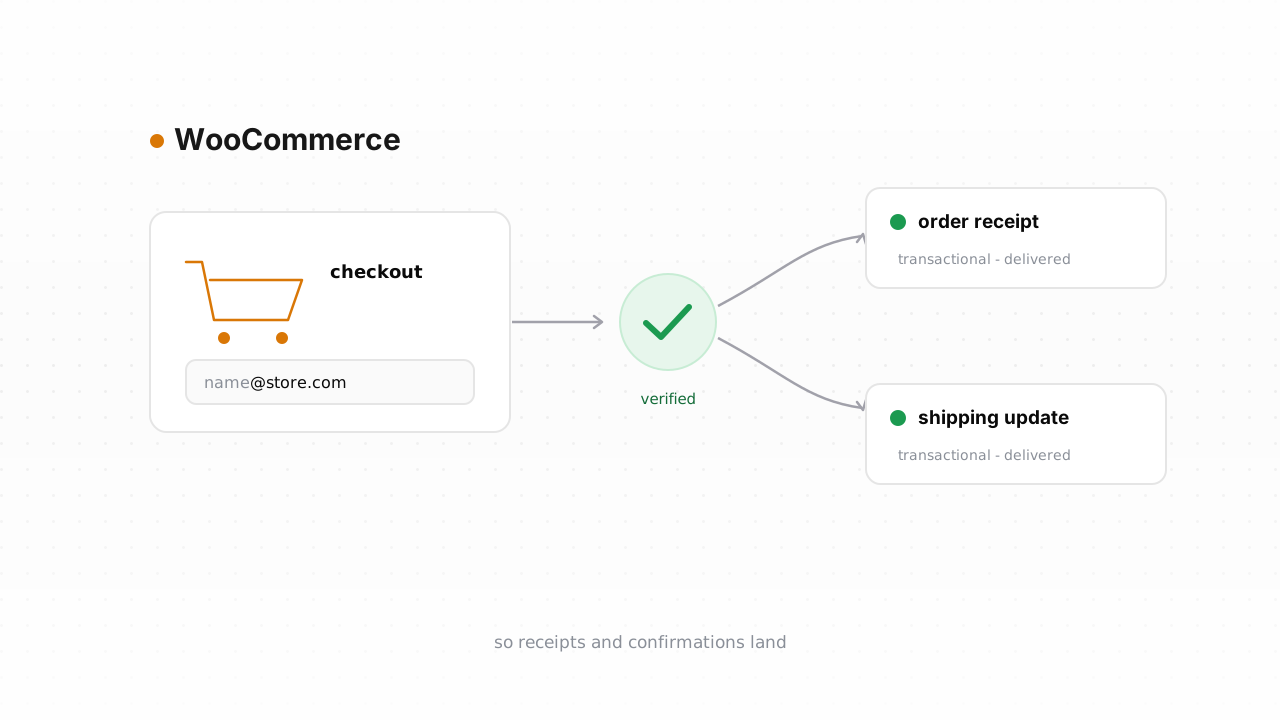
Every WooCommerce order kicks off a chain of transactional email: the order confirmation, the receipt, the "your order has shipped" note, and often a follow-up asking for a review. All of it rides on the email address a customer typed at checkout. When that address is a typo, a throwaway, or a fake someone used to grab a coupon, none of those messages land, and the bounces quietly erode the sending reputation your whole store depends on. This guide walks through verifying the customer emails already in your WooCommerce store, tagging the risky ones, and checking new addresses in real time so bad data never gets a foothold.
Why customer email quality matters for a store#
For an online store, email is not marketing garnish. It is the receipt, the shipping tracking, and the record of the transaction. If an order confirmation bounces, the customer has no proof of purchase and your support inbox fills up with "did my order go through?" tickets. If the shipping update never arrives, you get a "where is my package?" complaint even though the parcel is moving.
The deeper problem is shared reputation. Whether you send through WordPress's default wp_mail, an SMTP plugin, or a service like SendGrid or Postmark, your store's transactional mail and your marketing broadcasts usually flow from the same domain and the same IPs. Every hard bounce from a fake checkout address, and every complaint from someone who never meant to sign up, tells mailbox providers your sender is careless. Gmail and Yahoo now enforce this explicitly with bounce and complaint thresholds, so a pile of dead addresses can push even your legitimate receipts into spam. If you want the full picture on that, our email deliverability guide and the piece on why bounce rate matters go deeper, along with a breakdown of the Google and Yahoo sender rules.
Checkout is a uniquely messy source of addresses. People rush, they fat-finger gmial.com, they paste a work address they never check, or they invent one to claim a first-order discount. That is exactly the population verification is built to catch.
What WooCommerce does and doesn't do about bad addresses#
WooCommerce validates the format of an email at checkout. It will reject bob@ or a missing @, and it stores the address on the customer and order records. That is the extent of it. WooCommerce does not check whether the domain exists, whether the mailbox is real, whether it is a disposable throwaway, or whether the mail server will actually accept a message. A syntactically perfect address for a mailbox that was deleted last year sails straight through.
WooCommerce also has no concept of a suppression list for bad addresses. When a transactional email bounces, that failure happens inside whatever mail transport you use, not inside WooCommerce, and by default nothing writes back to the customer record. The order stays, the customer profile keeps the dead address, and the next campaign or receipt tries it again. There is no built-in "this address is undeliverable, stop trying" flag.
WooCommerce behavior above last verified against WooCommerce's documentation, August 2026.
That gap is the whole reason to verify deliberately. You have two ways to close it: connect the native integration and clean in place, or run the classic export-verify-tag loop by hand.
The fastest path is the native connector. Qualisend's WooCommerce integration is live, so you can connect your store, verify the customers already in it, and write the results back in place, no CSV shuffling required. It also runs real-time checks on new contacts as they come in. If you can install a plugin and click connect, this is the route to take. The manual loop below works on any plan and any hosting setup, so it is the fallback when a native connection is not an option.
Step-by-step: export customers, verify, tag the risky ones#
Here is the CSV loop end to end. It works whether you are on WordPress.com, managed WooCommerce hosting, or a self-hosted install.
1. Export your customers. WooCommerce does not ship a one-click customer CSV out of the box, but you have reliable options. The WooCommerce Customer / Order CSV Export extension exports customer and order records directly, including the billing email column. Alternatively, go to WooCommerce → Reports → Customers, or use Tools → Export for a WordPress-level dump. Many stores also pull the customer list from their order data with a plugin like Advanced Order Export. Whichever you choose, the column you care about is the billing email.
2. Trim the file. Open the export and keep the email column plus one stable identifier, such as the customer ID or order number, so you can match results back later. You do not need to send names, addresses, or order totals to a verifier, so leave them out.
3. Upload for bulk verification. Drop the CSV into Qualisend. A single bulk job handles up to 1,000,000 addresses, and duplicates are charged once, which matters for stores where the same customer placed many orders. If you just want to try it, the free plan gives you 100 one-time credits that never expire.
4. Read the four verdicts. Every address comes back as deliverable, risky, undeliverable, or unknown. Each verdict carries a reason code, a 0–100 confidence score, the MX provider, and SMTP probe evidence, plus sub-flags for catch-all, disposable, role, and full mailbox. Those flags map neatly onto store problems: disposable addresses are usually coupon-grabbers, role addresses like orders@ or info@ belong to a team rather than a person, and catch-all domains accept everything so they can't be confirmed one way or the other. Our explainers on catch-all addresses and role, disposable, and free addresses unpack what each flag means for your list.
5. Act on the results.
- Deliverable — keep and mail with confidence.
- Undeliverable — do not send. In WooCommerce, add a note or a custom field to the customer record, or apply a segment tag in your email tool, so future campaigns skip them. This is the suppression list WooCommerce doesn't give you.
- Risky — throttle rather than delete. Send transactional mail but hold these out of large marketing blasts, or send to them separately so a bounce spike doesn't poison a big send.
- Unknown — often a greylisting server that deferred the probe. Re-check later before deciding; our note on greylisting explains why these resolve on a second pass.
6. Write the tags back. Update your customer records or your email platform's segments with the verdict. If you exported from WooCommerce and mail through Klaviyo, Mailchimp, or similar, apply the suppression there so the dead addresses stop getting sends.
How often you repeat this depends on volume; most stores re-verify their active list on a schedule, and our guide on how often to clean your list offers concrete cadences. For the store-specific version of the whole argument, see email verification for ecommerce. On a different platform too? The same pattern applies to verifying Shopify emails.
Verify new customers in real time#
Cleaning the existing list is a one-time catch-up. The durable fix is stopping bad addresses at the door, so you never rebuild the mess you just cleaned.
With the native WooCommerce integration connected, new contacts are checked automatically as they register or check out, and the verdict is written back without any work on your side. That is the simplest way to keep the list clean going forward.
If you want tighter control or a custom flow, wire it up yourself. Qualisend's REST Verification API uses scoped keys with rate limits and supports webhooks, so you can call it at the moment a customer submits checkout. A common pattern is a WordPress hook on woocommerce_checkout_order_processed or user_register that sends the address to the API, then flags the order for manual review, or nudges the shopper to fix an obvious typo, when the verdict comes back undeliverable. Because verification adds a network round-trip, run it asynchronously or with a sensible timeout so it never blocks the sale; when in doubt, let the order through and flag it rather than risk a failed checkout.
Prefer not to write code? Qualisend connects to Zapier, Make, and n8n, so you can trigger a verification from a "new WooCommerce customer" event and route the result into a spreadsheet, a Slack alert, or a tag in your email tool, all without a developer. Full endpoint and webhook details live in the developer docs.
The goal either way is the same: only clean, deliverable addresses accumulate in your store, so your receipts land, your shipping updates land, and your sender reputation stays healthy enough that every message you send has a fighting chance at the inbox.
Frequently asked questions#
Does Qualisend have a native WooCommerce integration?#
Yes. The native WooCommerce integration is live. You can connect your store, verify the customers already in your list, and write the results back in place, and it runs real-time checks on new contacts as they come in. It is the fastest path for most stores. If you can't or don't want to connect it, the CSV export-verify-tag loop works on any plan and any hosting setup.
Can I verify emails before they enter WooCommerce?#
Yes. Call Qualisend's REST Verification API at checkout or registration using a WordPress hook such as woocommerce_checkout_order_processed or user_register, so an address is checked before it settles into a customer record. Run the check asynchronously or with a short timeout so it never blocks the sale, and when a verdict is undeliverable, flag the order for review or prompt the shopper to fix a likely typo. No-code users can do the same through Zapier, Make, or n8n.
What does WooCommerce do about bad email addresses on its own?#
WooCommerce only checks that an address is correctly formatted at checkout. It does not confirm the domain exists, that the mailbox is real, or that mail will be accepted, and it has no built-in suppression list. When a transactional email bounces, that happens inside your mail transport, not WooCommerce, and nothing writes back to the customer record by default, so the dead address gets tried again on the next send.
What do the four verdicts mean for my store list?#
Every address returns as deliverable, risky, undeliverable, or unknown, each with a reason code, a 0–100 confidence score, MX provider, SMTP probe evidence, and sub-flags for catch-all, disposable, role, and full mailbox. Keep deliverable addresses, suppress undeliverable ones, throttle risky ones by holding them out of big marketing blasts, and re-check unknown results later since they are often a greylisting server that deferred the probe.
How many addresses can I verify at once, and is there a free option?#
A single bulk job handles up to 1,000,000 addresses, and duplicates are charged only once, which helps when the same customer placed many orders. The free plan includes 100 one-time credits that never expire, so you can test the export-verify-tag loop on a sample of your WooCommerce customers before committing.