
Google Postmaster Tools is the free dashboard Google gives to any domain that sends mail to Gmail, and it is the closest thing you have to seeing your mail through Gmail's own eyes. Every other deliverability tool estimates what Gmail thinks of you; Postmaster Tools reports it, straight from Google's side of the connection: your spam rate, your compliance with Gmail's sender requirements, your authentication pass rates. If Gmail is a meaningful slice of your list, and for almost everyone it is, this is the first place to look when placement drops and the dashboard you should be watching before it does.
The catch is that it only speaks in aggregates, and only once you send enough mail to register. This guide covers how to set it up, what each dashboard means, how to act on it, and why it is the authoritative source for Gmail placement rather than a nice-to-have.
The short version#
Postmaster Tools is a set of dashboards, one per metric, keyed to a domain you verify by DNS. The ones that matter, in rough order of how often you'll act on them:
- Spam Rate — the share of your delivered mail that Gmail users marked as spam, plotted against Google's 0.3% line.
- Compliance Status: whether your domain meets Gmail's sender requirements, such as authentication and one-click unsubscribe.
- Authentication — the pass rates for SPF, DKIM, and DMARC across your traffic.
- Encryption — the share of your mail exchanged over TLS.
- Delivery Errors — the share of mail Gmail rejected or deferred, and why.
- Feedback Loop — per-campaign spam rates for senders who tag mail with a
Feedback-IDheader.
None of it populates without volume, and none of it is real-time — expect a day or two of lag. But read together these charts tell you exactly which lever to pull, which is more than any third-party inbox-placement estimate can honestly claim.
Setting up Google Postmaster Tools#
Setup is a one-time DNS verification, and it is genuinely quick. Go to the Postmaster Tools site, add the domain you want to monitor, and Google hands you a verification string. The most reliable method for a bare sending domain is a TXT record:
example.com. TXT "google-site-verification=Xa1B2c3D4e5F6g7H8i9J0kLmNoPqRsTuVwXyZ"
Publish that at your domain's apex, wait for DNS to propagate, and click verify. If the domain is already verified in Google Search Console, Postmaster Tools will usually recognize it and skip this step.
One decision matters more than the mechanics: which domain to verify.
Postmaster Tools keys its data to the domain that authenticates your mail — in
practice the domain in your DKIM signature's d= value, which for a
well-configured sender is your own domain, not your ESP's. Verify that domain. If
you send from a subdomain like mail.example.com, verify the exact domain that
appears in the DKIM d= and the visible From address, or the dashboards will sit
empty while your mail flows under a name you never added. Getting authentication
right is a prerequisite here as much as everywhere else — your
SPF, DKIM, and DMARC setup has to be
in place before any of this data means anything.
The spam rate dashboard and the 0.3% line#
The Spam Rate dashboard is the single most important view, because it reports the number Gmail weights most heavily: the percentage of your delivered mail that recipients marked as spam by hitting the "Report spam" button. Google plots it over time and draws the line at 0.3% — the ceiling written into the 2024 bulk-sender rules — and advises staying comfortably under 0.1%.
Two things make this the metric to watch. First, it is Gmail's own count, not your ESP's estimate — the spam complaint rate your platform shows can differ, and Gmail acts on its own figure. Second, 0.3% of a large send is a very small number of complaints, so a single bad segment or a bought list can blow past the line in one campaign. Watch the trend, not a single day: a spam rate creeping from 0.05% toward 0.2% is your earliest warning that placement is about to slip, and it usually moves before your open rates do. The threshold itself is part of the broader Google and Yahoo sender requirements every bulk sender now has to meet.
Domain and IP reputation without the old grades#
Older guides, and older screenshots, show Domain Reputation and IP Reputation dashboards that graded senders High, Medium, Low, or Bad. Google retired those reputation dashboards, so Postmaster Tools no longer gives your domain or your IPs a grade. Gmail still tracks reputation and still acts on it; you now read it from the signals the tool does show:
- Spam Rate: the closest stand-in for a reputation grade. Keep it under 0.3% and aim below 0.1%; a rate trending upward is the early warning a slipping grade used to give.
- Compliance Status: whether your domain still meets Gmail's sender requirements, such as authentication and one-click unsubscribe. A requirement that slips out of compliance is a problem to fix before it affects delivery.
- Delivery Errors: a rise in rate-limited or reputation-related rejections and deferrals is Gmail telling you it trusts your mail less.
- Bounce and deferral codes in your own logs: broken out by mailbox provider, the 4xx deferrals and 5xx rejections your sending platform records show trouble as it happens, without waiting for Google's aggregates.
Domain reputation is the one to prioritize. Because you can move between ESPs and IPs but your domain travels with you, Gmail leans on domain reputation for most senders — and for anyone on a shared IP pool, domain reputation is largely what you personally control. IP reputation matters more if you send from a dedicated IP, where a cold or mistreated address can drag placement down on its own. Reputation is built from a rolling history and recovers slowly, so treat a rising spam rate or a new run of deferrals as an early signal to fix the cause, usually complaints or list quality, rather than something that settles on its own. How reputation forms is covered in the sender reputation guide.
Authentication, encryption, and delivery errors#
Three more dashboards round out the technical picture, and all three should be boring if your setup is healthy.
Authentication reports the share of your traffic that passed SPF, DKIM, and DMARC, as Gmail measured it. The target for each is effectively 100%. Anything meaningfully below that points at a real misconfiguration — a sending service you forgot to include in SPF, a broken DKIM selector, an unaligned From domain — and it is worth running down immediately, because authentication is binary and gates everything else. If a stream is only 80% DKIM-passing, some real portion of your mail is arriving unauthenticated.
Encryption shows the percentage of your inbound and outbound Gmail traffic carried over TLS. For virtually all modern senders this sits at or near 100% and needs no attention; a sudden dip would suggest a mail-server or relay problem worth investigating, but it is the dashboard you'll glance at least.
Delivery Errors reports the share of your mail Gmail rejected or temporarily deferred, broken out by reason. The categories are the useful part: rate-limiting or reputation-based rejections point at a reputation or warm-up problem, while errors tied to authentication or policy point back at your DNS. A rising delivery-error rate from a previously clean domain often means Gmail has started throttling you because reputation dropped, which sends you back to the spam-rate and compliance-status dashboards, and to your own bounce codes, to find the cause.
The Feedback Loop dashboard#
The Feedback Loop (FBL) dashboard is separate from the main Spam Rate view and,
for larger senders, one of the most useful. Traditional feedback loops forward
you a copy of each complaint; Gmail's works differently — it reports aggregate
spam rates per identifier rather than individual complaints, and only for mail
you have tagged with a Feedback-ID header.
You opt in by adding the header to your outgoing messages, with fields you define:
Feedback-ID: campaign-4218:newsletter:march:acmemail
The final field is a stable identifier for you as a sender; the earlier fields are your own dimensions — campaign, stream, customer, segment — up to three of them. Gmail then shows the spam rate for each identifier that reaches enough volume, so you can see which campaign or stream is generating complaints instead of only knowing your overall rate rose. That granularity is what turns a vague "spam rate is up" into "the re-engagement blast to the 2023 segment did it." It complements, rather than replaces, a traditional feedback loop setup, and it is worth wiring up if you run many distinct streams from one domain.
Why it's the authoritative source — and where it stops#
Every inbox-placement tester and reputation-score vendor is, at bottom, guessing at what Gmail thinks. They send seed messages, or model signals, or extrapolate from panels. Postmaster Tools doesn't guess — it reports Gmail's own measurements of your real mail to real recipients. When it says your spam rate touched 0.25% on Tuesday, or that your domain no longer meets one of the sender requirements, that is ground truth, not an estimate. That is why it is the first tool to open when Gmail starts sending your mail to spam: the metric that moved points straight at the cause.
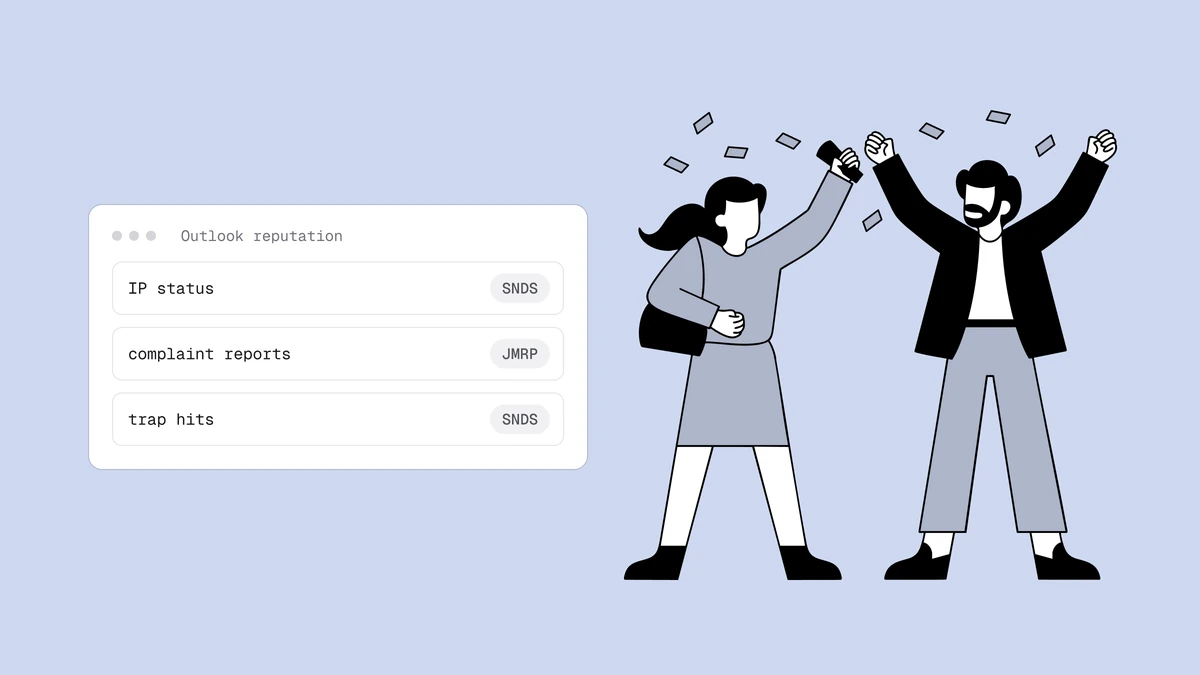
Two honest limits keep it from being the whole picture. It only covers Gmail — for Outlook and Hotmail you need Microsoft's own equivalent, SNDS (Smart Network Data Services) — and it only speaks in aggregates, so it tells you that your spam rate rose without naming the addresses behind it. It also won't populate for low-volume senders at all. So use it as the authoritative read on Gmail placement, then pair it with the upstream work it can't do for you: authenticating every stream, suppressing complainers, and keeping the list clean enough that the spam rate never climbs toward that 0.3% line in the first place.
Frequently asked questions
01Is Google Postmaster Tools free?
Yes. It is a free product from Google for anyone sending mail to Gmail addresses. The only setup cost is a one-time DNS verification of your sending domain - you add a TXT record (or reuse an existing Search Console verification), and Google unlocks the dashboards for that domain. There is no paid tier and no per-message charge.
02Why is my Postmaster Tools showing no data?
Almost always volume. Postmaster Tools needs a meaningful, consistent stream of mail to Gmail before its charts compute, and Google doesn't publish the exact threshold - low-volume senders routinely see "No data to display," especially on the spam-rate view. The other common cause is verifying the wrong domain: the data is keyed to the domain that authenticates your mail (your DKIM d= domain), so if you verified your website domain but sign with a subdomain, the dashboards stay empty.
03What is a good spam rate in Google Postmaster Tools?
Keep it under 0.1%. Google's hard line is 0.3% - the ceiling in the 2024 bulk-sender requirements - and crossing it consistently is when Gmail starts routing you to spam by policy. But 0.3% is a ceiling, not a target; healthy senders sit well below 0.1%, and the trend matters more than any single day. A rate climbing toward the line is an early warning even before you cross it.
04Does Google Postmaster Tools show which emails were marked as spam?
No. It reports aggregate rates, never individual recipients or messages - Google doesn't expose who marked you as spam. The closest you get is the Feedback Loop dashboard, which breaks the spam rate down by the Feedback-ID you tag your campaigns with, so you can see which stream or campaign is responsible even though you can't see the specific addresses. To act on it, suppress at the segment level and tighten who you mail.
Postmaster Tools tells you your Gmail spam rate is rising; it can't tell you which dead addresses and typos are driving the bounces and complaints behind it. Qualisend's free email checker catches invalid and risky addresses before you send, so the spam rate Gmail reports back to you stays well under that 0.3% line.