
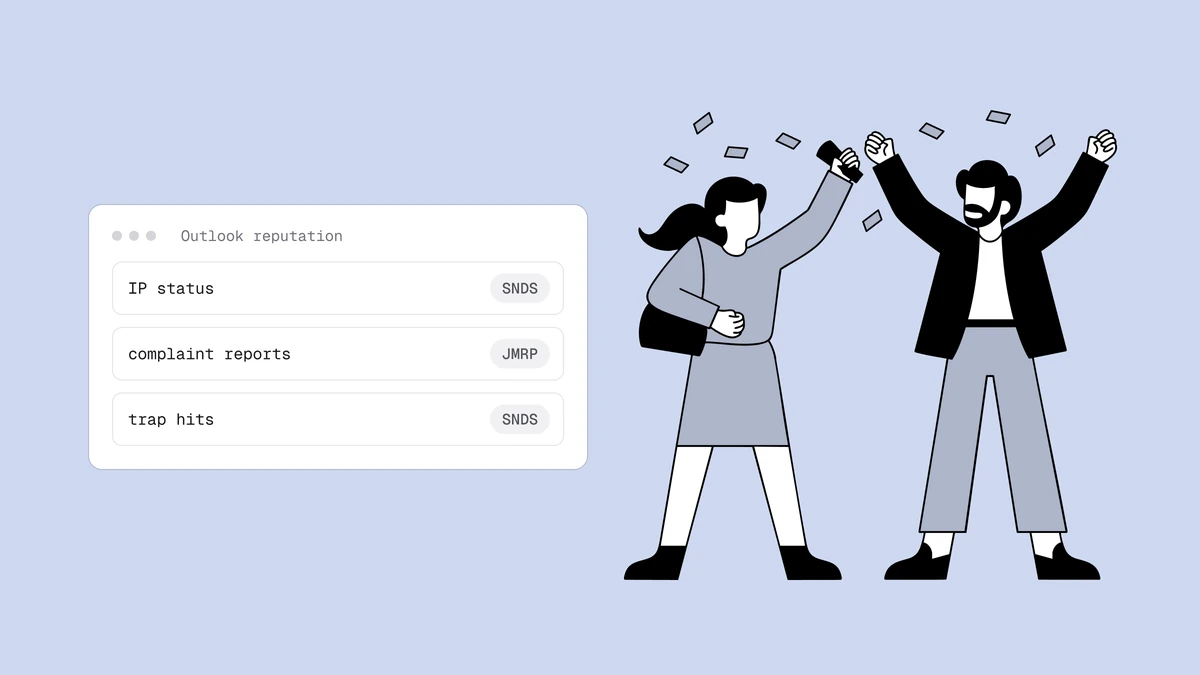
Microsoft SNDS (Smart Network Data Services) is the closest thing you get to looking over Outlook.com's shoulder: a free service that shows you, per sending IP, how much mail you sent to Microsoft's consumer mailboxes, how many people marked it as junk, whether you hit a spam trap, and a plain color telling you how the filter is treating you. Pair it with JMRP — Microsoft's feedback loop — and you have the two tools that make deliverability to Outlook.com, Hotmail, and Live measurable instead of a guessing game. Here is how both work and how to use them.
The short answer#
SNDS reports data keyed to the sending IP address, not the domain. You request access for the IPs you control, and once Microsoft verifies you control them, you get a per-IP dashboard of volume, complaint rate, spam-trap hits, and a green / yellow / red filter result. JMRP (the Junk Email Reporting Program) is the companion feedback loop: enrol an IP and Microsoft forwards you a copy of every message an Outlook.com user marks as junk, so you can suppress that person before they complain again. Both are IP-based, which matters: if you send on your own dedicated IP you get the data directly, but on a shared-IP ESP the provider owns the IPs and holds the data for you.
What Microsoft SNDS shows you#
Once you have access, SNDS gives you a handful of views. The one you will live in is the Data page, a per-IP, per-day table. For each IP you have been authorised for, it reports roughly the following for a given activity window:
- Message volume — the count of RCPT (recipient) commands and DATA commands Microsoft saw from that IP, which is a proxy for how much you tried to send and how much you actually delivered.
- Complaint rate — the proportion of delivered messages that recipients moved to the Junk folder or hit the "report" button on. This is the single most important number on the page.
- Trap message hits — how many of your messages landed on a spam-trap address Microsoft controls. Even a small non-zero count is a warning that your list contains addresses you never got real permission for.
- Filter result — the color (green, yellow, or red) summarizing whether mail from that IP is being delivered normally or pushed toward Junk.
- Sample HELO / MAIL FROM — a sample of the hostnames and envelope senders Microsoft saw from the IP, useful for spotting a neighbour or a rogue stream on an IP you thought was yours alone.
There is also an IP Status page that flags whether any of your IPs are on a Microsoft block list. The data is not real-time — expect a day or so of lag — and an IP only shows data once it has sent enough mail for the numbers to be meaningful.
Requesting access to your IPs#
Access is free but gated, because Microsoft has to confirm you actually control the IPs you are asking about — it is not going to hand a stranger another company's complaint data. The flow, at the sender support site that hosts SNDS, looks like this:
- Sign in with a Microsoft account and open the SNDS request page.
- Enter the IP or CIDR range you want data for — a single address, or a
block written in CIDR notation such as
203.0.113.0/24. - Choose an authorisation contact. Microsoft offers a list of email
addresses it associates with that IP allocation — typically role addresses at
the netblock owner (such as
abuse@orpostmaster@) and contacts drawn from the IP's registration records. It sends an authorisation link to the address you pick. - Approve the request from that mailbox. Whoever controls the netblock's contact address clicks the link and grants access.
That last step is the catch for anyone on infrastructure they do not own. Send through an ESP on shared IPs and the authorisation email goes to the ESP, not you — which is exactly why the ESP, and not you, is the party that can enrol those IPs. On your own dedicated IPs it is straightforward.
Reading the colors: green, yellow, red#
The filter result is deliberately simple so you can read it at a glance. Microsoft does not publish the exact numeric thresholds behind each band, and it weighs more than complaints alone, so treat the colors as directional rather than a formula.
| Filter result | Roughly what it means | What to do |
|---|---|---|
| Green | Mail from this IP is generally being delivered to the inbox and is not being filtered to Junk on the basis of the data Microsoft has. | Keep going; watch the complaint rate and trap hits so it stays there. |
| Yellow | Some of your mail is being filtered to the Junk folder — a warning band that reputation is slipping. | Investigate before it turns red — check complaints, trap hits, and any new or poorly cleaned segment. |
| Red | Mail from this IP is being filtered to Junk for most recipients, or blocked outright. | Stop the bleeding — pause questionable streams, clean the list, and follow the delist path below if you are blocked. |
The complaint rate is the lever you have the most direct control over. There is no published Microsoft equivalent of Gmail's stated 0.3% ceiling, but the practical target is the same: keep complaints as far below a fraction of a percent as you can. A rate that is drifting up is a list and consent problem, and the fix lives in how you handle spam-complaint rate, not in any DNS record. Trap hits should be zero; any recurring hits mean addresses on your list were never opted in and need to be found and removed.
JMRP: closing the feedback loop#
SNDS tells you that people are complaining. JMRP tells you who. The Junk Email Reporting Program is Microsoft's feedback loop: once you enrol a sending IP, every time an Outlook.com user clicks "Junk" on one of your messages, Microsoft forwards you a copy of that complaint to an address you nominate.
Enrolment happens in the same sender support portal and, like SNDS, is keyed to IPs you control: register the sending IP, give Microsoft a mailbox for the reports, and confirm. Complaints then arrive as ARF (Abuse Reporting Format) messages — a standard, machine-readable format — with enough detail to identify the recipient who complained.
The whole point of a feedback loop is what you do with it: suppress every complainer, immediately and permanently. Wire the JMRP mailbox into an automated process that adds each complaining address to your suppression list, the same way you would handle a one-click unsubscribe. Someone who hit "Junk" has told you as clearly as possible that they do not want your mail; sending again only drives your complaint rate — and your SNDS color — the wrong way. A feedback loop you collect but never act on is worse than none: it lulls you into thinking you are monitoring when you are not.
When Outlook blocks you: the delist path#
If your filter result goes red and mail starts bouncing, the bounce message itself is your first diagnostic. A Microsoft block typically returns an SMTP error that names the reason and carries an error code — something along the lines of:
550 5.7.1 Unfortunately, messages from [203.0.113.10] weren't sent.
Please contact your Internet service provider since part of their network
is on our block list (S3150). You can also refer your provider to
http://mail.live.com/mail/troubleshooting.aspx#errors. [Error code Sxxxx]
The exact code (you will see values such as S3140 or S3150 for reputation-based blocks) points to whether the block is about complaints, traps, or listing on a third-party blocklist Microsoft consults. Read it before you do anything else, because the remedy differs.
For consumer Outlook.com blocks, the path is Microsoft's sender support / deliverability support request form, where you submit the blocked IP and explain the remediation you have done. Be honest and specific about what you cleaned and what changed. A delisting request with no underlying fix usually just resets the clock until the next block.
Two things worth separating so you do not waste time on the wrong door:
- The Office 365 / Microsoft 365 anti-spam IP delist portal (a self-service
form for business-hosted mailboxes) is a different system from consumer
Outlook.com. If your bounce is from an
@outlook.comor@hotmail.comaddress, the business delist portal is not the right tool. - If the bounce says you are blocked because you are on a third-party blocklist that Microsoft consults, delisting with Microsoft alone will not help — you have to get off the underlying list first. That is a broader problem covered in how email blocklists work, and it is why ongoing monitoring matters more than one-off delisting.
Whatever the code, delisting is the last step, not the first. Fix the list and the sending behavior that got you blocked, confirm your complaint rate and trap hits are back under control in SNDS, then request removal — otherwise you are asking Microsoft to trust an IP whose behavior has not actually changed.
SNDS is IP-based — what that means for you#
The single most important thing to internalise is that both tools are tied to IP addresses, and that shapes who can use them.
If you send on a dedicated IP you control, SNDS and JMRP are yours to enrol, and they are two of the best free signals you can get for Microsoft mail. Combined with Gmail's equivalent — covered in the Google Postmaster Tools guide — they give you provider-side visibility into the two mailbox worlds that make up most consumer inboxes.
If you send on a shared IP through an ESP, you cannot enrol IPs you do not control, so the ESP holds the data and acts on it. That is not necessarily a problem — a good ESP monitors it and suppresses complainers for you — but it does mean your Outlook.com reputation is partly a function of your IP neighbours, one of the trade-offs in the dedicated-versus-shared-IP decision. Either way, the reputation you are protecting is the same sender reputation every provider scores, and the levers are identical: clean list, real consent, low complaints.
None of this replaces authentication or list hygiene — it measures them. When SNDS shows yellow or red, the answer is almost never a new setting; it is that you are mailing people who do not want it, or addresses that never belonged on the list. If your Outlook mail is struggling specifically, the tactical fixes are in why emails go to spam in Outlook. SNDS and JMRP just make sure you find out before Microsoft decides for you.
Frequently asked questions
01What is Microsoft SNDS and what does it show?
Smart Network Data Services is a free Microsoft tool that reports, per sending IP, data on the mail you send to Outlook.com, Hotmail, Live, and MSN addresses. For each IP you are authorised for, it shows message volume, complaint rate, spam-trap hits, and a green / yellow / red filter result indicating whether your mail is delivered normally or pushed toward the Junk folder.
02How do I get access to SNDS?
You request access per IP address or CIDR range at Microsoft's sender support site. Because the data is sensitive, Microsoft verifies control by emailing an authorisation link to a contact associated with that IP allocation - usually a role address like abuse@ or postmaster@, or a contact from the netblock's registration - and whoever controls that mailbox approves it. That is why you can only enrol IPs you actually own: on a shared ESP pool, the authorisation goes to the ESP.
03What is the difference between SNDS and JMRP?
They are complementary. SNDS is the reporting dashboard - it tells you the aggregate picture per IP, including that complaints are happening. JMRP, the Junk Email Reporting Program, is the feedback loop - enrol an IP and Microsoft forwards you a copy of each individual complaint so you know which recipient marked your mail as junk and can suppress them. Use SNDS to watch the trend and JMRP to act on each complaint.
04My Outlook.com mail is being blocked - how do I get delisted?
First read the bounce: its error code tells you whether the block is about complaints, traps, or a third-party blocklist. Fix the underlying cause - clean the list, suppress complainers via JMRP, and confirm your complaint rate and trap hits are back down in SNDS. Then submit the blocked IP through Microsoft's sender support / deliverability request form for consumer Outlook.com. The Microsoft 365 business delist portal is a separate system, and a third-party blocklist has to be resolved with that list directly.
SNDS and JMRP tell you when Outlook.com has stopped trusting your IP — but the cheapest fix is never getting there. Qualisend's blocklist monitoring watches your sending IPs and domains across the major blocklists and alerts you the moment one lists you, while the free email checker strips the dead addresses and spam traps that drive complaints and red filter results in the first place.